Profil et sécurité
Votre identité sur Kops, ce que la communauté en voit, et les deux écrans qui décident qui peut entrer dans votre compte — plus ce qu'une clé d'accès change à la connexion par mot de passe, qui est plus que ce qu'il paraît.
Paramètres → Compte, dans le menu utilisateur. Trois sections : Profil, Sessions, Clés d'accès.
Profil
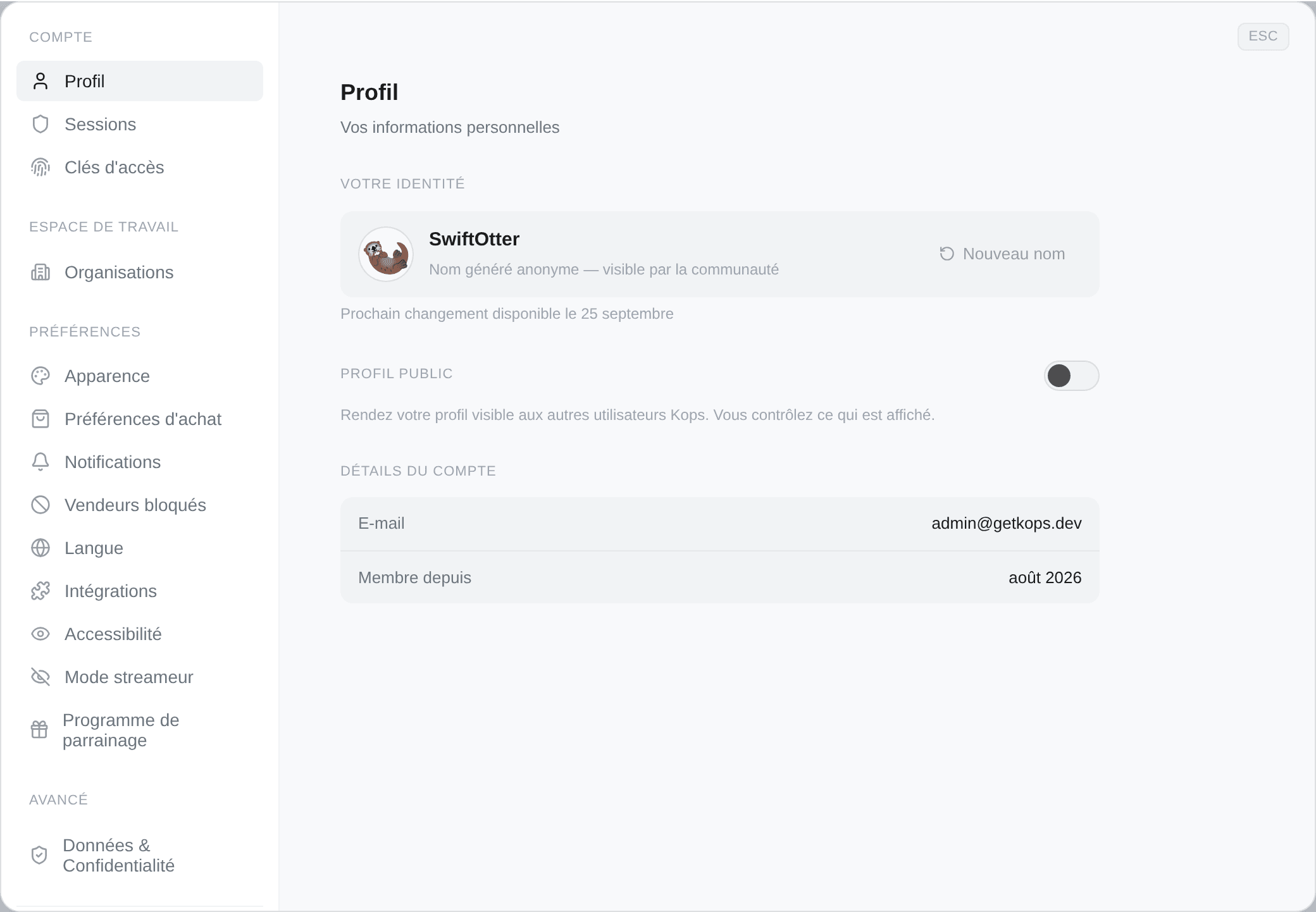
L'onglet s'ouvre sur votre identité générée, puis le profil public, et se termine par les deux choses que vous ne pouvez pas changer : votre e-mail et votre date de membre depuis.
Nouveau nom relance l'identité générée, et c'est limité à une fois tous les 30 jours. Le bouton est désactivé entre-temps, et l'infobulle comme la ligne en dessous nomment la date de déblocage.
La limite existe pour qu'un nom veuille dire quelque chose. Un nom changeable toutes les heures n'est une identité que personne ne peut reconnaître.
Le profil public
Désactivé par défaut, et c'est l'interrupteur qui révèle tout le reste de la section — éteint, il n'y a ni pseudo, ni bio, ni photo à remplir.
Activez-le et vous obtenez :
| Photo | JPG ou PNG, jusqu'à 2 Mo. Changer la photo pour la remplacer |
| Pseudo | Lettres, chiffres et _, 3 à 30 caractères. Disponibilité vérifiée à la frappe — Disponible, Déjà pris, ou la règle elle-même si la forme est mauvaise |
| Bio | Jusqu'à 280 caractères, avec un compteur en direct |
Puis quatre interrupteurs sous Afficher sur le profil, chacun indépendant :
- Formule d'abonnement
- Nombre de cops
- Taux de réussite
- Carte de chaleur des tentatives — le seul qui démarre allumé. Il dit à quelle fréquence vous chassez, jamais ce que vous avez acheté ni à quel prix.
Vous pouvez afficher un nombre de cops sans le taux de réussite, ou une formule sans ni l'un ni l'autre.
Rien de tout cela n'expose vos comptes Vinted, vos filtres, ni ce que vous achetez. C'est un tableau des scores, pas une vitrine.
Votre pseudo est distinct du nom généré : le nom généré est ce que la communauté voit par défaut, le pseudo est ce que vous choisissez de vous faire appeler par-dessus.
Sessions
Appareils sur lesquels vous êtes actuellement connecté.
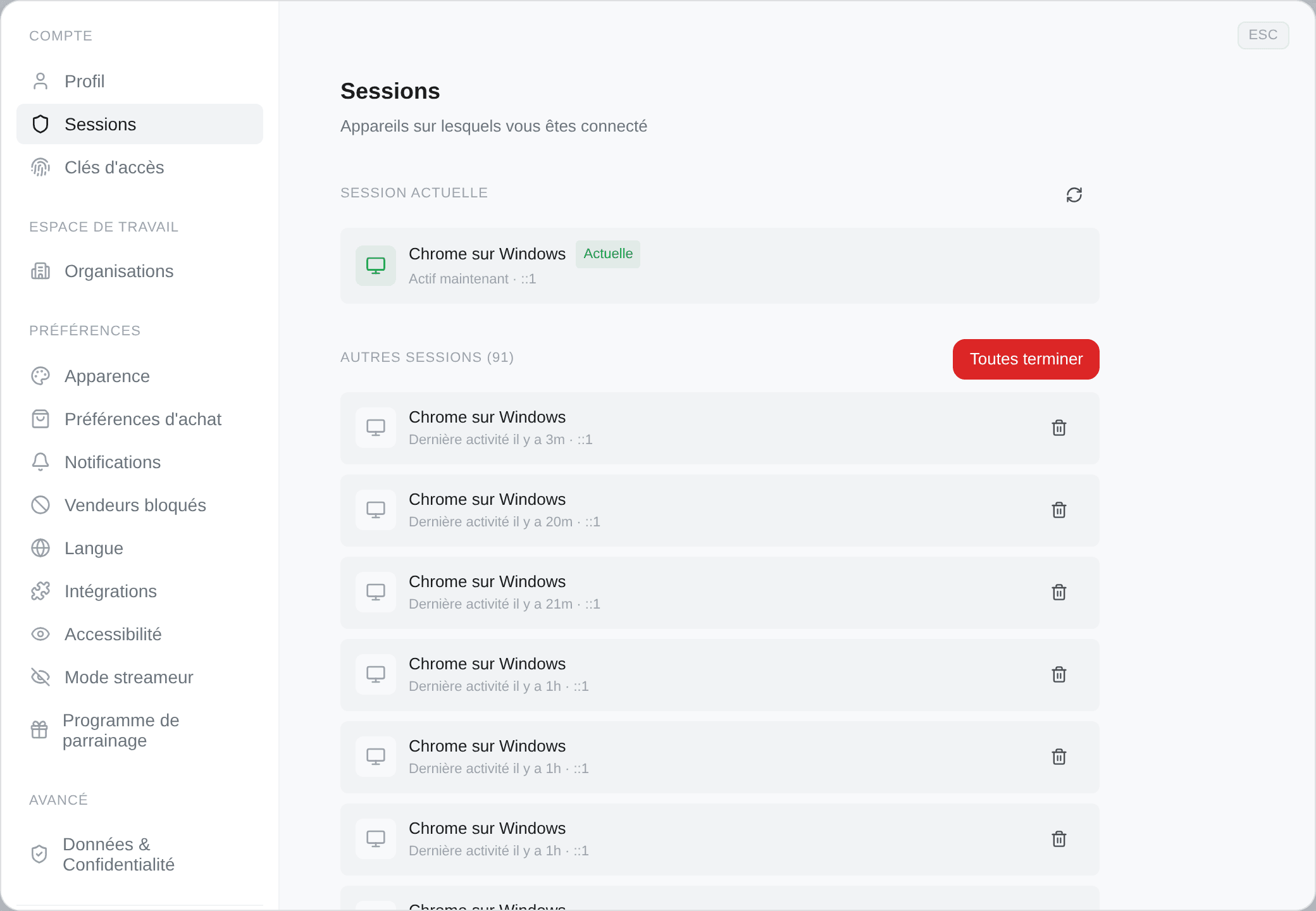
Votre session actuelle occupe son propre bloc en haut, marquée Actuelle, et affiche Actif maintenant — ce badge veut dire « c'est vous, ici », pas « cet appareil est en ligne ». Toutes les autres sessions affichent leur dernière activité, avec leur adresse IP à côté.
Chacune est nommée par son navigateur et son système, ce qui suffit en général à reconnaître une machine.
Fermer cette session — la corbeille sur une ligne — déconnecte cet appareil. Tout fermer efface toutes les autres sessions d'un coup, confirme combien elle en a fermées, et vous laisse connecté ici.
Si vous voyez un appareil que vous ne reconnaissez pas, fermez cette session, puis changez votre mot de passe. Dans cet ordre : fermer la session d'abord arrête ce qui est en train de se passer pendant que vous vous occupez du mot de passe.
Déconnecter un appareil n'affecte pas les autres, et n'affecte pas vos comptes Vinted connectés — c'est complètement autre chose. Voir Ajouter un compte Vinted.
Clés d'accès
Une clé d'accès vous connecte avec la biométrie de votre appareil — Face ID, une empreinte, un code Windows Hello — ou une clé de sécurité matérielle. Aucun mot de passe à taper, et rien à hameçonner.
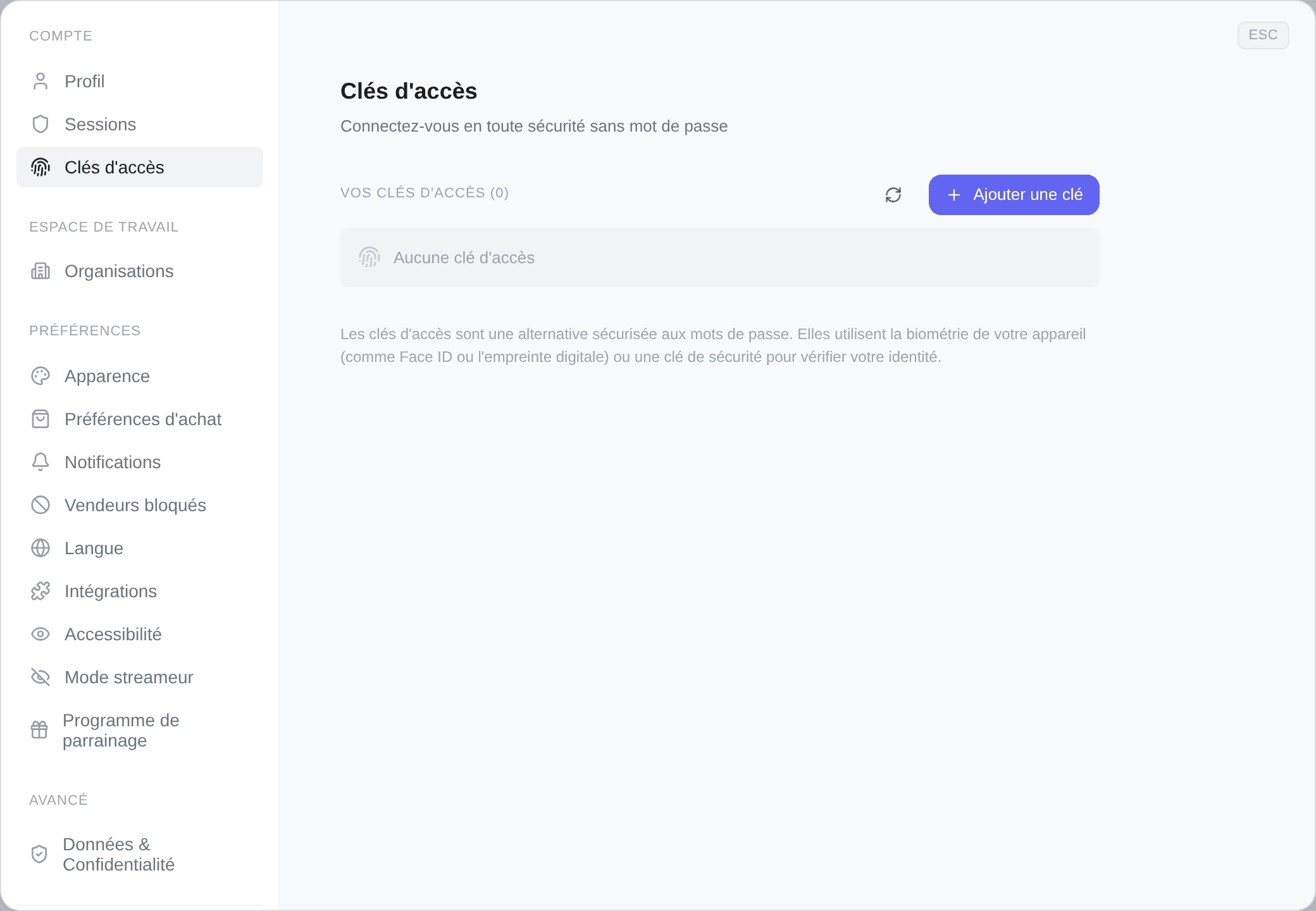
Ajouter une clé d'accès, puis donnez-lui un nom que vous reconnaîtrez plus tard (MacBook Pro, iPhone). Le navigateur fait le reste.
La liste montre chaque clé avec sa date d'ajout et sa dernière utilisation — ou Jamais utilisée. Le crayon en renomme une ; la corbeille la supprime, avec une confirmation.
| Le navigateur ne les gère pas | On vous le dit, avec une suggestion : un Chrome, Safari, Firefox ou Edge récent |
| Vous avez plusieurs appareils | Ajoutez une clé par appareil ; elles sont indépendantes |
| Vous supprimez votre dernière clé | Votre mot de passe seul vous reconnecte |
Dès que vous avez une clé d'accès, le mot de passe seul cesse de suffire. Se connecter avec son mot de passe amène sur Vérifiez votre identité au lieu du tableau de bord — à chaque fois, sur chaque appareil, y compris ceux qui n'ont aucune clé.
C'est tout l'intérêt, et il vaut mieux le savoir avant d'en ajouter une sur une machine que vous êtes sur le point de laisser derrière vous.
Si vous ne pouvez pas présenter de clé, Se connecter avec un lien par e-mail sur ce même écran vous en envoie un. Il dure 10 minutes, ne fonctionne qu'une fois, et vous fait entrer — d'où vous pouvez supprimer la clé que vous n'avez plus.
Supprimer votre dernière clé remet la connexion par mot de passe à la normale.
Une clé d'accès est cryptographiquement liée au domaine sur lequel elle a été créée, et Kops a déménagé. Une clé créée avant le déménagement ne peut pas ouvrir kops.gg — rien ne permet de la convertir.
L'onglet Clés d'accès affiche une bannière qui le dit, refermable une fois le sujet réglé, et l'écran de connexion propose le lien par e-mail exactement pour ce cas. Connectez-vous avec le lien, supprimez l'ancienne clé, enregistrez-en une nouvelle.
Ajouter, renommer et supprimer une clé d'accès sont tous consignés dans le journal d'audit de votre espace.