Membres et rôles
Inviter des gens, ce que chacun des deux rôles peut et ne peut pas faire, et pourquoi ce sont les places qui décident vraiment si une invitation part.
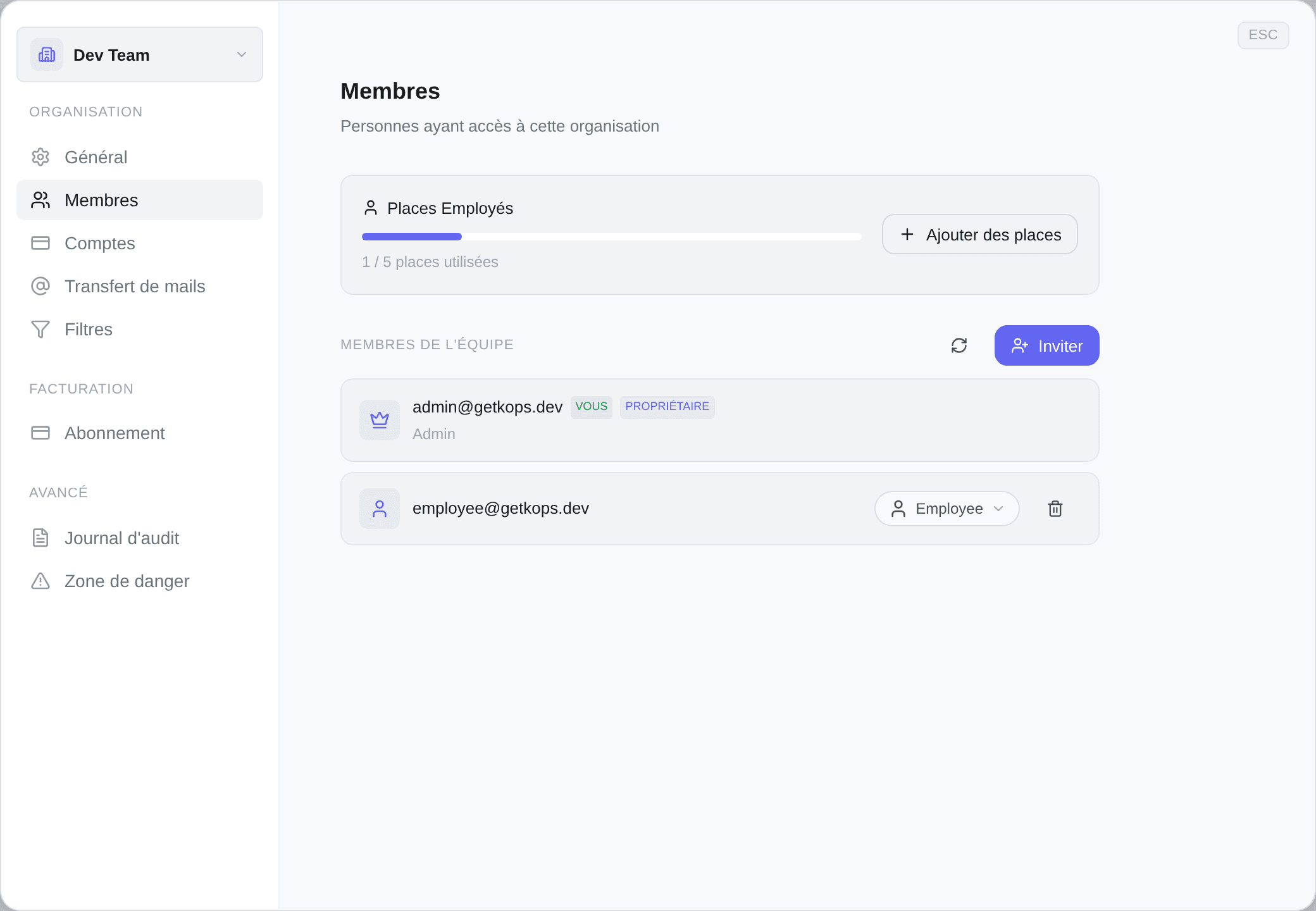
Paramètres de l'espace → Membres. Espaces d'équipe en formule Pro ; un espace personnel n'a pas de membres.
Inviter quelqu'un
Inviter, puis son adresse e-mail et le rôle qu'il doit avoir. Kops n'envoie pas l'e-mail à votre place — il vous donne un lien à transmettre, valable 7 jours, avec un bouton Copier le lien à côté.
Il n'y a nulle part de liste des invitations en attente. Une fois la fenêtre fermée, le lien n'est plus récupérable : copiez-le avant de partir ; si vous le perdez, réinvitez la même adresse.
Trois conditions avant que le bouton fonctionne :
- l'espace est en Pro — les places n'existent pas en dessous, et l'infobulle dit Passez à la formule Pro pour inviter des membres ;
- vous êtes admin — sinon elle dit Vous n'avez pas la permission d'inviter des membres ;
- il y a une place libre. Sans place, le bouton est désactivé plutôt que d'envoyer une invitation qui ne pourrait pas être honorée.
Les trois sont revérifiées au moment où l'invitation est acceptée : une place prise entre-temps est donc rattrapée là, plutôt que de laisser entrer quelqu'un au-delà de la capacité.
Le sélecteur de la barre latérale a son propre Inviter des membres, et il se comporte différemment exprès : il lit d'abord vos places, et s'il n'y en a aucune de libre il ouvre la fenêtre d'ajout de places au lieu du formulaire d'invitation. Achetez la place et il vous rend directement à l'invitation que vous vouliez écrire.
L'onglet Membres ne fait pas ça — le bouton y est simplement désactivé, avec la raison au survol. Même règle, deux façons de la satisfaire.
Les deux rôles
Il y en a deux, et c'est le second qui est intéressant.
| Admin | Employé | |
|---|---|---|
| Créer, modifier et supprimer ses propres filtres | check | check |
| Voir et gérer les filtres de tout le monde | check | cross |
| Acheter, faire des offres, écrire aux vendeurs | check | check |
| Voir les tentatives et la boîte de réception | check | check |
| Utiliser les comptes Vinted | tous | seulement ceux attribués |
| Connecter ou retirer un compte Vinted | check | cross |
| Attribuer des comptes aux personnes | check | cross |
| Changer les préférences d'achat automatique | check | check |
| Inviter, retirer, changer les rôles | check | cross |
| Voir la formule et sa consommation | check | check |
| Changer de formule, acheter des places ou des packs | check | cross |
| Lire le journal d'audit | check | cross |
| Quitter l'espace | check | check |
Propriétaire n'est pas un rôle — c'est une position. Elle appartient à qui a créé l'espace, elle porte aussi le rôle Admin, et elle ne se transmet pas. Deux choses lui sont réservées : renommer l'espace et le supprimer. Tout le reste du tableau, un admin le peut.
La ligne qui surprend, c'est Employé et comptes : un employé peut acheter, mais uniquement avec les comptes Vinted qu'un admin lui a attribués, et il ne peut pas en connecter de nouveau. C'est volontaire — un compte Vinted connecté est un identifiant, et donner à tout le monde le pouvoir d'en ajouter et d'en retirer annule l'intérêt d'avoir des rôles. Voir Partage.
Les places
Une place, un membre d'équipe. C'est une option qui s'achète par-dessus Pro — voir Packs de comptes et places.
La section Membres affiche {used} / {total} places utilisées au-dessus de la liste, avec une barre. Elle n'est dessinée que pour les personnes qui peuvent inviter ; un employé ne voit pas la jauge du tout.
| Ce que vous voyez | Ce que ça veut dire |
|---|---|
| Aucune place achetée | Pro, mais aucune place achetée — Ajouter des places à côté |
| Aucune place disponible — achetez des places pour inviter des membres | Toutes vos places sont prises |
| Aucune place incluse dans ce forfait / …demandez à un administrateur d'ajouter des places | Votre formule a été offerte plutôt qu'achetée : il n'y a pas d'achat de place en libre-service. Le nombre de places est fixé sur l'octroi |
| Limite de places dépassée | Plus d'employés actifs que de places. La carte passe au rouge, les nouvelles invitations sont bloquées, et Ajouter des places est la sortie |
| Suspendu, sur la ligne d'un membre | Ce membre est au-delà de votre capacité payée. Le survol indique depuis quand |
Un membre suspendu n'est pas retiré. Ses filtres, ses attributions et son historique sont intacts — il ne peut simplement plus entrer, et il voit un message lui disant de vous demander.
Réduire les places ne retire personne. Ça plafonne le nombre d'actifs. Qui se retrouve suspendu ne se laisse pas au hasard — libérez les places que vous vouliez libérer, depuis la fenêtre de dépassement de capacité dans les réglages d'abonnement.
Changer un rôle
Choisissez un autre rôle sur la ligne du membre. Ça prend effet tout de suite, à sa prochaine action — il n'a pas besoin de se déconnecter.
Deux lignes n'ont ni sélecteur de rôle ni bouton de retrait, à dessein : la vôtre et celle du propriétaire. Vous ne pouvez pas vous rétrograder hors d'admin, et personne ne peut rétrograder le propriétaire.
Rétrograder un admin en employé ne lui retire pas les comptes Vinted qu'il utilisait, mais il n'atteint désormais que ceux qui lui sont explicitement attribués.
Retirer quelqu'un
La corbeille sur la ligne du membre, avec une confirmation qui nomme son e-mail.
Il perd immédiatement l'accès à l'espace. Ce qu'il a créé reste — les filtres qu'il possède, les comptes qu'il a ajoutés, les commandes qu'il a passées. Sa place est libérée aussitôt, mais il reste sur votre facture tant que vous n'avez pas aussi réduit le nombre de places.
« Permission requise »
Si quelqu'un signale une fonctionnalité qu'il ne peut pas utiliser, vérifiez son rôle avant la formule. L'interface distingue les deux :
- Cette fonctionnalité nécessite la formule {plan} — question de facturation, et le bouton mène à la mise à niveau.
- Permission requise — question de rôle. Sa formule va bien.
C'est le second que l'on diagnostique de travers en équipe. Voir Formules et limites.