Preferences
Theme, which Vinted domain your links open on, card size, shoe sizes, language, the magnifier, streamer mode, and the two purchase settings that decide what you see while a buy is running.
Settings → Preferences. Everything here is yours alone — none of it changes anything for the rest of your workspace.
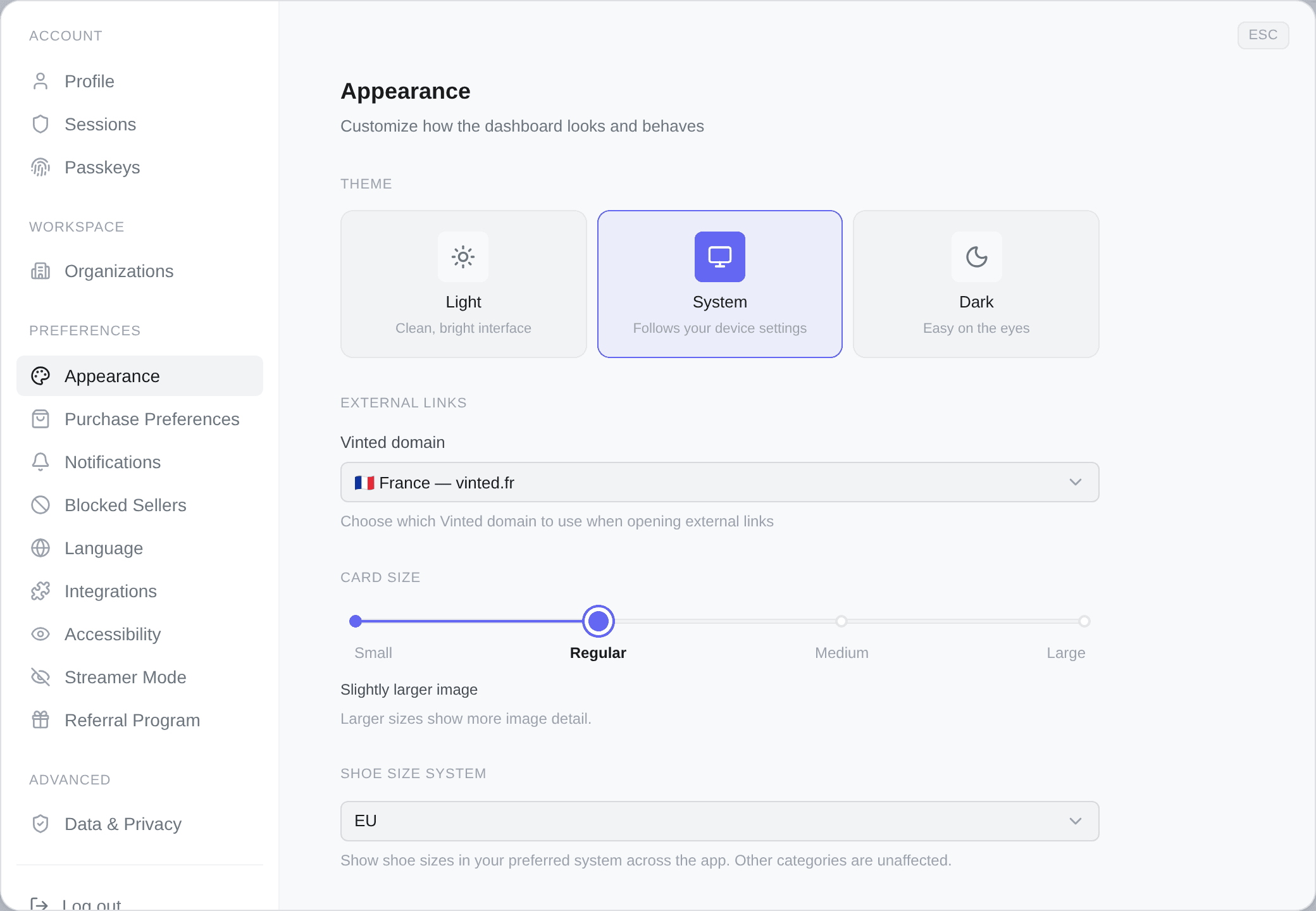
Appearance
Four sections, in this order.
Theme — Light, System, Dark. System follows your device.
External Links — Vinted domain, which decides where an Open on Vinted link takes you. 21 markets are listed, each with its flag and its domain (vinted.fr, vinted.co.uk, vinted.com.au…). If you buy from a French account but browse vinted.co.uk, this is the setting that stops every link landing on the wrong site.
Card Size — how big product cards are in the feed, on a four-stop slider: Small (compact, maximum density), Regular, Medium, Large (maximum detail). Larger cards show more of the photo, which matters more than it sounds when you are judging condition at a glance.
Shoe Size System — show shoe sizes in EU, US or UK across the whole app. Only shoes; other categories are unaffected.
Language
English or French, for the whole dashboard. Your choice syncs across your devices while you are signed in.
This is the dashboard's language. It does not change what language Kops writes to sellers in — that is Auto-translate, and it is a separate setting for a good reason.
Accessibility
Magnifying glass on hover — a lens over product photos when you hover them, on desktop only.
Switch it on and two sliders appear under it (they are hidden while it is off):
- Zoom, from 1.5× to 5× in half steps.
- Lens size, from 60 to 200 in steps of ten.
The point is condition assessment: a pull in the knit or a mark on a sole is often the difference between a good buy and a return, and it is rarely visible at card size.
Streamer mode
Hide personal and account details so you can stream or share your screen without leaking sensitive information.
Enable Streamer Mode blurs identifying details across the app until you turn it back off. What gets hidden, in the order the tab lists it:
| Hidden | |
|---|---|
| Your identity | Your name, email, and account usernames |
| Sellers | Seller names and avatars on product cards |
| Financial data | Balances, payouts, and PayPal email |
| Links | Referral codes, invite and share links |
It is saved on this device only. It does not follow you to another browser or another machine — which is what you want, since the machine you stream from is usually not the one you work on.
Blurred, not removed: you can still read your own screen when you need to. Everything comes back the moment you switch it off.
Purchase progress display
Settings → Purchase Preferences. What you see while a purchase is running, from the Buy button or a retry.
| Mode | What happens |
|---|---|
| Detailed | The modal opens with the full live timeline — every step, every event. Best when you want to debug or watch closely |
| Compact | The modal opens but hides the step-by-step timeline. Status, errors and 3-D Secure prompts stay visible, the noise does not |
| Toasts only | The modal never opens. A failure still reaches you as a toast, and the Buy button reflects the live state |
Toasts only is the same as clicking Don't show again on the modal. Choose it once you trust the thing and you are buying often enough that a modal per purchase is in the way.
Which account acts for you
Same screen, and it decides which Vinted account is used when you start a conversation or make an offer from a product card:
- Ask each time — always open the picker.
- Auto-pick — skip the picker, use a random ready account. Falls back to the picker if none are ready.
- Pin one — always use the account you pin, from a searchable list below. If it is not ready (quarantined, inactive, no card), the picker opens instead.
Quarantined and inactive accounts, and accounts with no credit card, cannot be pinned — pinning one would be pinning a failure.
This governs conversations and offers. Deliberate one-off actions — a retry, a pre-order — always show the picker, because they are overrides and an override that guesses is not an override.
Integrations
Connect links an external account to Kops. Connected integrations sync with your subscription: your role updates when your plan changes.
Refresh role re-syncs it by hand if something looks stale — after an upgrade that has not propagated yet, typically. Disconnect unlinks it. On a deployment with none configured, the tab simply says No integrations available yet.
Linking Discord here is also what makes Discord DM notifications possible.