Shared filters and accounts
The admin's view across everybody — which Vinted accounts each employee is allowed to buy with, and every filter in the workspace with its subscribers.
Workspace settings → Accounts and → Filters. Both are admin-only, and neither exists in a personal workspace.
These are the workspace-wide views. Sharing one filter from its own editor is covered in Folders and sharing.
Account assignments
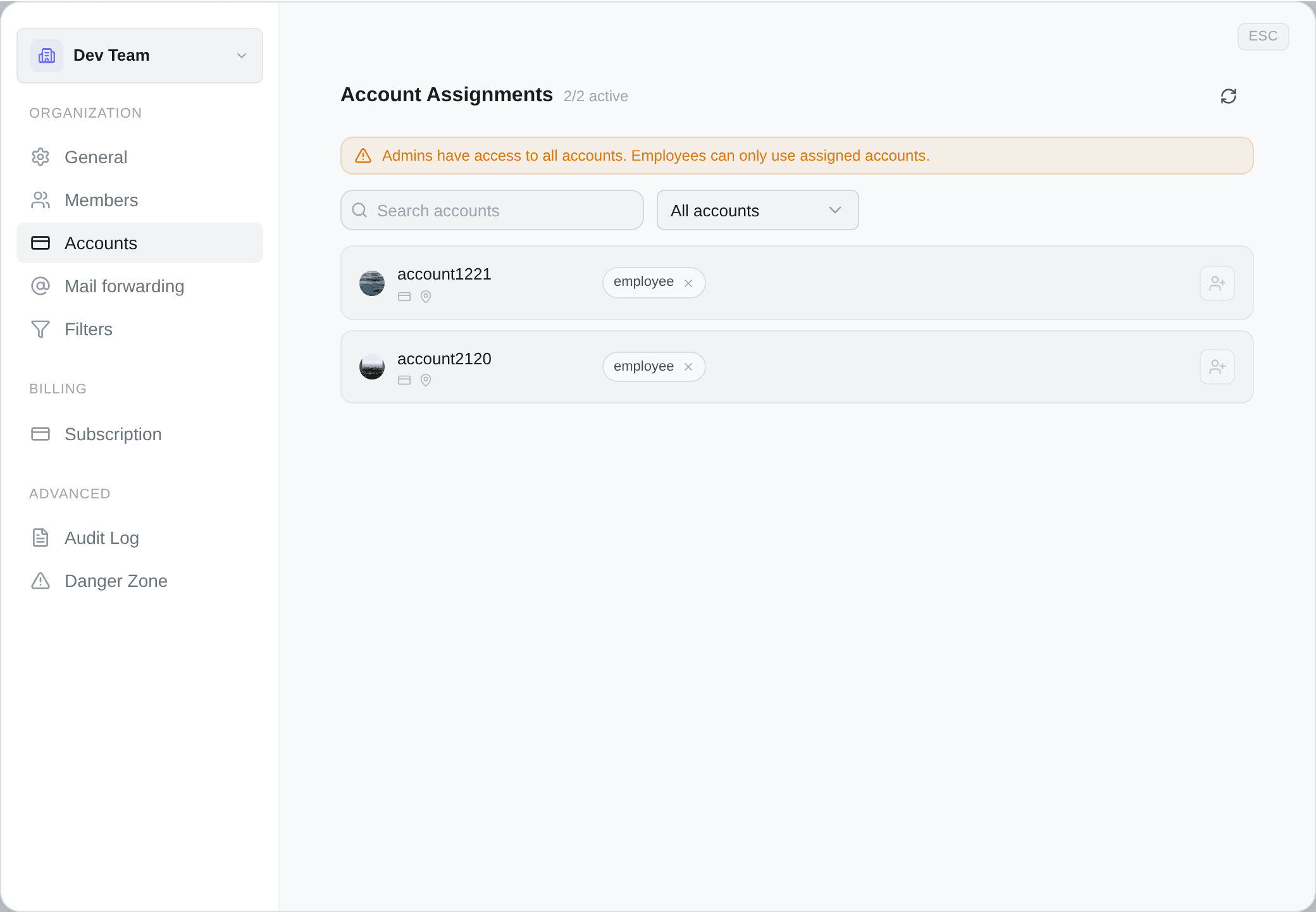
Admins have access to all accounts. Employees can only use assigned accounts.
That banner is the whole model. An employee sees, and buys with, exactly the Vinted accounts an admin has handed them — nothing else. Assign none and they can do everything except actually buy.
The header counts the pool: {active}/{total} active, for the workspace, not per row.
Assigning. The person-plus button at the end of a row opens a checklist of the employees who are not yet on that account — tick as many as you like, then Assign ({n}). Admins never appear in it: they already reach every account, so assigning one would mean nothing.
The button is disabled, with the reason on hover, in two cases: All employees already assigned, and No employees in organization — which is the one to check first on a workspace where nothing seems assignable.
Unassigning. Each assignment is a chip carrying the person's name; the close on it removes their access, after a confirmation naming them. It takes effect immediately.
Finding a row. A search box, and one dropdown with five choices:
| Choice | Why you would use it |
|---|---|
| All accounts | The default |
| Active only / Inactive only | Do not assign a dead session to somebody and let them find out during a drop |
| With assignments | Who is using what |
| No assignments | Find the accounts nobody has been given |
An inactive account is dimmed and carries an Inactive badge; it can still be assigned, which is deliberate — you often fix the session afterwards.
Two small glyphs sit under a username and are not filters: a card means the account has a payment card, a pin means it has an address. Both are the difference between an account that can win and one that cannot — see Payment cards and Address and shipping.
They answer different questions and they stack.
Assignments answer who is allowed to use this account — a permission, per person.
Account groups answer which accounts may buy for this folder — a routing rule, per folder.
An automatic purchase has to satisfy both: the account must be in the folder's group, and if the filter belongs to an employee, that employee must be assigned to it. A filter that never fires with a healthy-looking pool is often an assignment nobody thought to check.
Every filter in the workspace
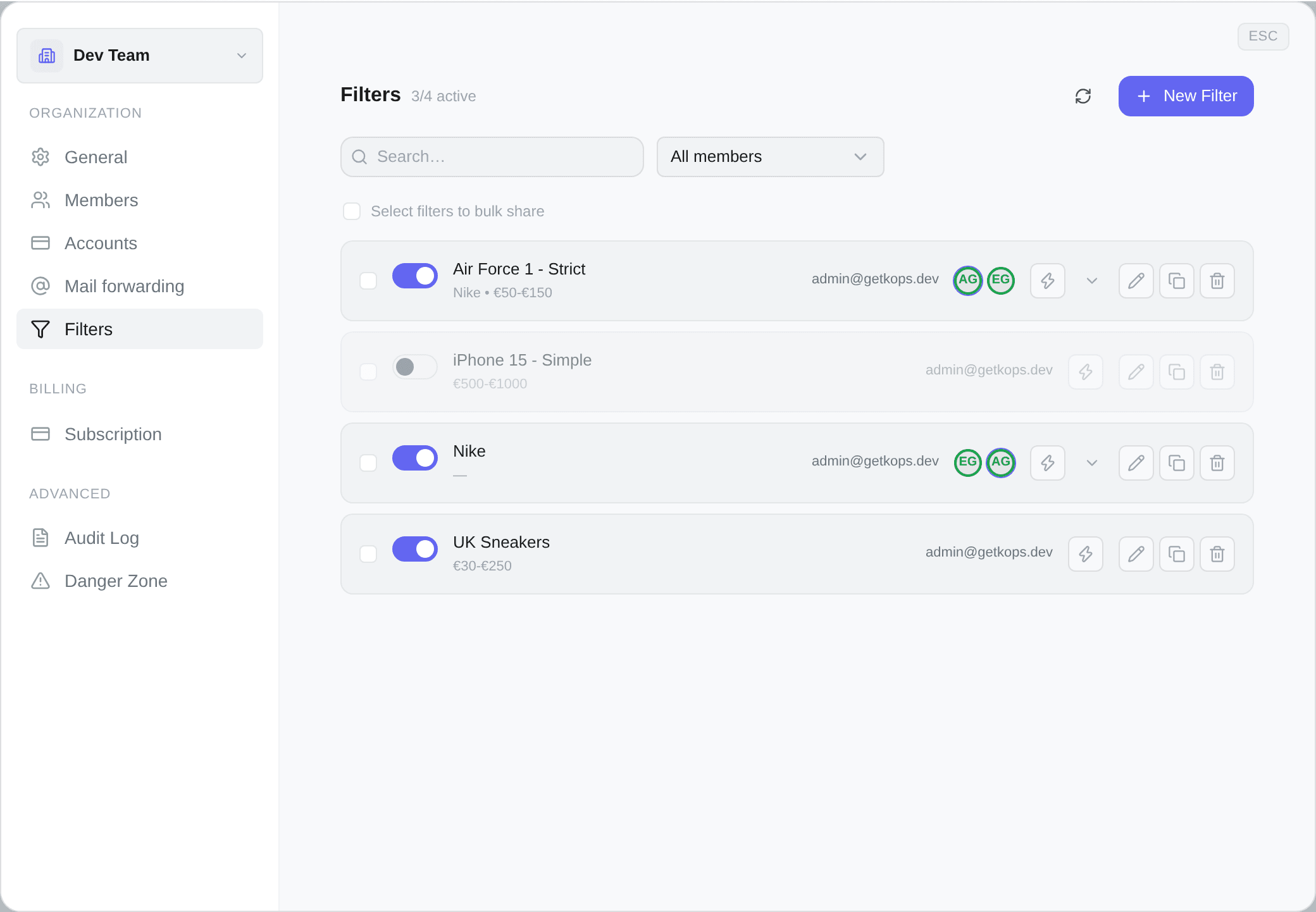
The Filters section lists all of them, whoever owns them, with {enabled}/{total} active in the header.
Each row carries, left to right: a selection box, the on/off switch, the filter's name with a one-line summary of its criteria, the owner's email, the people it is shared with, an autocop button, and — only when it has subscribers — a chevron that opens the list.
An admin can do from here what the owner can do from the filter itself:
- create a filter — but you are asked whose it is first, from a member picker, because a filter in this workspace always belongs to somebody;
- edit or duplicate one, from the pencil and the copy icons;
- enable or disable it, from the switch;
- turn its autocop on or off, from the lightning button;
- delete it, with a confirmation naming it;
- change who it is shared with, from Add subscriber inside the expanded row.
A search box and Filter by member narrow the list — which is how you audit a new joiner's setup, or find out what a leaver left running.
Bulk sharing
Tick several filters — or the box in the selection bar, which takes the whole visible list — then Share with… and pick a member. That subscribes them to all of the selected filters at once. {count} selected and Deselect all sit beside it.
Subscribers are shown as Active or Paused — the state each subscriber chose for their copy of the filter. A paused subscriber is not a broken share; they simply turned it off for themselves, and the owner's copy is unaffected.
Sharing a filter shares the search, not the automation. Every subscriber keeps their own active, notification and autocop switches, and their own acquisition settings. Two people can watch the same search with completely different buying behaviour behind it.
What an employee sees of all this
Nothing. The Filters and Accounts sections of the workspace settings are not shown to them at all — no greyed-out tab, no upgrade prompt, just absent.
They see their own filters, the ones shared with them, and the accounts assigned to them. That is the entire surface.