Privacy and blocked sellers
Sellers you never want to see again — with a duration, a reason and a visibility mode — plus exporting your data, resetting the setup wizard, and deleting your account for good.
Two screens, both under Settings: Blocked Sellers in Preferences, Data & Privacy under Advanced.
Blocked sellers
Manage sellers whose products you don't want to see. Blocked sellers are shared across your organization.
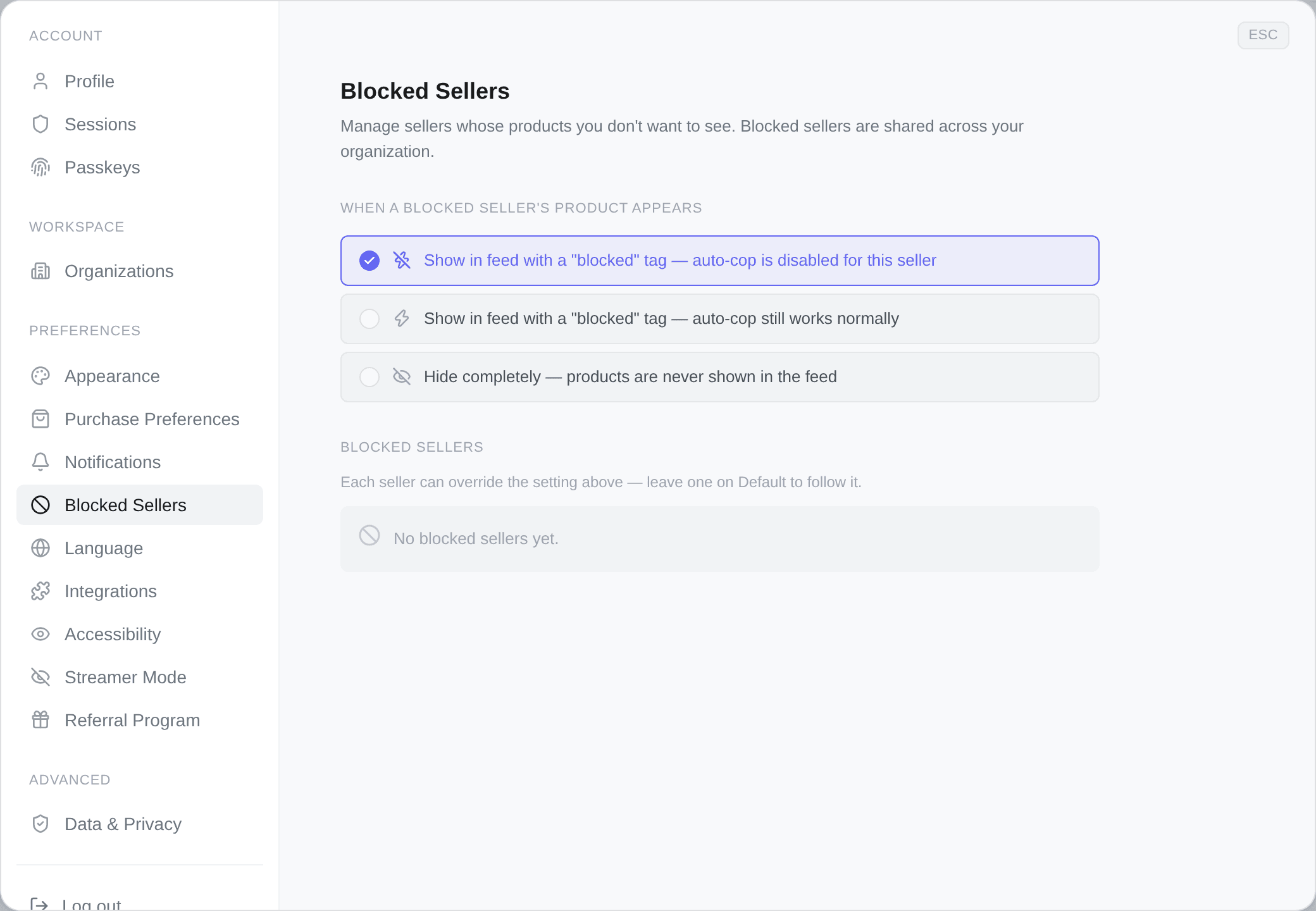
That second sentence is the first thing to know: blocking is a workspace decision, not a personal one. Block one and every member stops seeing them. Each entry shows Blocked by {name}, so on a team you can ask before unblocking.
You block from a product card, not from here. This tab is where blocks are reviewed, retuned and lifted; the block itself is an action on the seller in the feed. What you set there is a duration, a reason and an optional note.
For how long
A block is not necessarily forever. The dialog offers, with Permanent first and preselected:
Permanent · 30 minutes · 1 hour · 2 hours · 4 hours · 8 hours · 24 hours · 7 days
It remembers the last duration you actually confirmed and offers that one next time, so a timed block stays one tap away once you have used it.
A timed block shows in the list as Paused · {duration} left and lifts on its own. That is the one to use for a seller mass-listing something you do not want today, rather than banning them from your feed for good.
Why
Scam · Bad experience · Poor quality · Republication · Other
The reason is for you, not for us. Add a note as well — on a team, that is what stops somebody unblocking a scammer six weeks later because nobody remembered why. Both show under the seller's name in the list.
What blocking actually does
Three modes, and they are genuinely different:
| Mode | Feed | Autocop |
|---|---|---|
| Hide completely | Their products never appear | Never fires |
| Show, no auto-cop | Shown with a blocked tag | Never fires |
| Show, auto-cop on | Shown with a blocked tag | Still fires normally |
The third one is not a contradiction. It marks a seller you want flagged — so you look twice before buying by hand — without giving up automatic purchases from them.
The radio list at the top of the tab sets the default for every blocked seller. Each row then has its own dropdown that can override it, and leaving a row on Default makes it follow whatever you set above.
Export your data
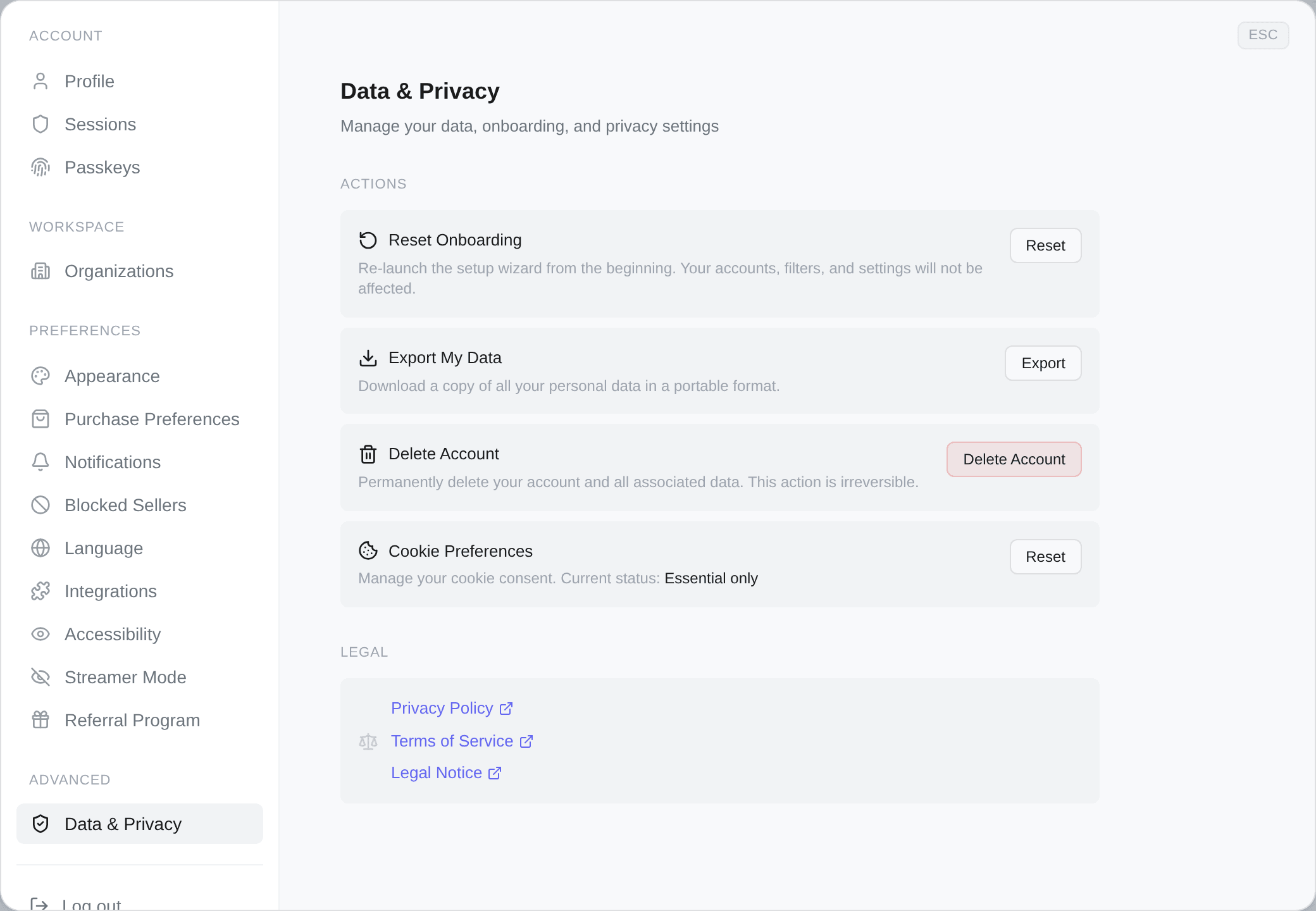
Export downloads your personal data as a single JSON file, kops-data-export.json. No conditions, no waiting period, nothing to request.
Reset onboarding
Reset re-launches the setup wizard from the welcome step, after a confirmation.
It changes nothing else: your accounts, filters, folders and settings are untouched. Useful when you want to walk the quickstart again on a workspace you have already set up, or hand a new colleague the guided path.
Cookie preferences
Shows your current status — All cookies accepted, Essential only, or Not set — and Reset clears it, which reopens the consent banner on the next load.
Deleting your account
Delete Account, and the confirmation asks for your password, typed in. A wrong one says Incorrect password and nothing happens.
What it removes: your account, all your organizations, your filters, and your data. Your subscription is cancelled at the same time. There is no recovery, from us or from anyone.
This is not the same as deleting one workspace. Deleting your account takes every workspace you own with it. If you only want to leave one team, use Leave organization in that workspace's danger zone instead.
And if you only want to stop paying, pause or cancel — everything is kept and restarting takes one click.
Legal
Links to the Privacy Policy, the Terms of Service and the Legal Notice, straight from your settings. Each opens in a new tab.