Connect Claude, ChatGPT, Claude Code or Codex
The address to paste, where to paste it in Claude, ChatGPT, Claude Code and Codex, the code a terminal assistant needs, and how to tell in thirty seconds that it worked.
Connecting takes about a minute. You paste one address into your assistant, sign in to Kops, and approve what the assistant may do. Everything it can reach after that is listed on what your assistant can do.
What you need
- A Kops account you can sign in to. The assistant acts as you, so it gets the permissions your role already has and never more.
- The workspace you want it to work in. A connection is bound to one workspace, chosen when you approve it — not switchable afterwards.
- On Claude: any plan, including Free, which allows a single connector. On ChatGPT: a paid plan, on the web app. Claude Code and Codex work from your terminal.
Kops recognizes four assistants by the identity their publisher publishes: Claude (web, desktop and mobile), ChatGPT, Claude Code and Codex. Other clients — VS Code, Cursor, generic MCP proxies — are not recognized and cannot connect.
You do not need an API key, and you will never be asked for your Kops password by the assistant.
The address
This is the whole configuration — one address, the same for everyone:
https://api.kops.gg/mcpCopy it as it is. It has to be the full address including https://; assistants reject anything else.
Claude
On a personal plan
Connectors live at claude.ai/settings/connectors. Anthropic has moved and renamed that menu more than once — Settings → Connectors, Customize → Connectors — so the link is the reliable way in.
- Open claude.ai/settings/connectors.
- Click +, then Add custom connector.
- Paste the address above.
- Click Add.
Leave Advanced settings alone. It asks for an OAuth Client ID and Secret, which exist for servers that hand out credentials by hand — Kops recognizes Claude by the identity Anthropic publishes, so filling those in is how you get a connection that fails.
Once added, turn it on for a conversation with the + button at the bottom left of the chat, then Connectors. A connector added on the web is there in the desktop and mobile apps too, once they reload.
On a Team or Enterprise plan
An owner adds it once for everyone:
- Organization settings → Connectors.
- Click Add, hover Custom, choose Web.
- Paste the address, click Add.
Members then open Customize → Connectors, find it in the list, and click Connect — which is where each person signs in and picks their own workspace. The owner's setup does not connect anybody's account, and it cannot: the approval is per member, because the permissions are per member.
ChatGPT
ChatGPT reaches outside servers through developer mode, on the web app only — a connector added on chatgpt.com shows up in the desktop and mobile apps afterwards, not the other way round.
Everything below happens on chatgpt.com/plugins, which is also where the Kops plugin is managed afterwards.
- Enable developer mode in Settings. On a Business, Enterprise or Education workspace an administrator has to allow it first, and cannot enable it for one person only.
- On chatgpt.com/plugins, add a plugin, giving it a name and the address above.
- Approve the warning ChatGPT shows about third-party servers, then sign in to Kops when it sends you there.
warning Two things move here and one is worth checking before you start. OpenAI has renamed this surface more than once — it is Plugins today, and has been Apps and Connectors — and what your plan may do with a custom connector is gated: several plans can only use tools that read. Kops publishes tools that write (creating a filter, blocking a seller), so those simply will not appear on a read-only plan. Everything that reads still works.
Deep research is not the path. That mode expects a server built around two generic tools, and Kops publishes named ones instead — it will connect and find nothing to call.
Claude Code and Codex
Both run in your terminal, and both take one more step than the web assistants: an activation code. Replace ADDRESS below with the address above.
Claude Code
- Run
claude mcp add --transport http kops ADDRESS. - In Claude Code, type
/mcp, choose kops, then Authenticate. Your browser opens on Kops. - Approve, then read the code Kops shows before you continue.
Codex
- Run
codex mcp add kops --url ADDRESS. - Run
codex mcp login kops. Your browser opens on Kops. - Approve, then read the code Kops shows before you continue.
The activation code
After you approve a terminal assistant, Kops shows a code like ABCD-EFGH and opens the assistant's page in a new tab. The connection does nothing until the assistant has that code. The first time you ask for something from Kops, the assistant asks you for it: type it in the chat, for example my Kops activation code is ABCD-EFGH.
Why the extra step: a program on your computer cannot prove it is really Claude Code or Codex. Anything running on the same machine — another program, a browser extension — could ask Kops in their name, and the approval screen would look identical. The code is what tells the two apart: only the assistant you started, in your own terminal, gets it from you.
- Type it only into the assistant you started yourself. Kops will never ask you for it, and no website, extension or support agent needs it.
- It works for 10 minutes. Five wrong codes end the connection; connect again to get a new one.
What you approve
Whichever assistant you use, the last step is a Kops screen, and it is the one worth reading rather than clicking through. It names:
- which application is asking, and who vouches for it — the domain that publishes it, such as claude.ai, or a developer Kops approved,
- where it sends you once you answer,
- which workspace it will act in,
- exactly what it will be allowed to do, one sentence per permission. Everything it asks for starts ticked, including permissions that change things: untick what you do not want it to do.
If you did not start the connection yourself — a link somebody sent you, a screen that appeared on its own — deny it. Kops emails you every time an application is connected to your account.
Approving grants that list and nothing outside it. An assistant that later tries something the list did not cover is refused — there is no setting that widens a connection after the fact, and no way for the assistant to ask for more without sending you back to this screen.
Check that it works
Ask for something you can verify in a second, in plain language:
list my filters
You should get your own filters back, from the workspace you picked. If the assistant answers from general knowledge instead — describing what a filter is, or inventing plausible names — it is not actually connected. Check that the connector is toggled on for this conversation before assuming the connection failed.
Disconnecting
Two places, and they do different things.
In Kops — Settings → Connections. Disconnect there and every credential that application holds stops working immediately, not at the end of a session. This is the one to use if something is wrong. Each connection is listed with where it was approved from and when it was last used, and you can end one — the laptop, say — without the others.
Resetting your password, or signing out of every device, also disconnects every application. A connection from Claude or ChatGPT lasts at most 90 days; after that, connect again.
In your assistant. Removing the connector there stops it offering the tools, but is a change to your assistant's configuration rather than to what Kops will accept. Do both when you are done with an assistant for good; do the Kops one first when you are in a hurry.
Reconnect an assistant
Removing the plugin and adding it again is the fix for every "it worked yesterday" problem, and the only fix for one of them: an assistant that still identifies itself the way it did before September 2026. Kops now recognizes Claude, ChatGPT, Claude Code and Codex by the identity their publisher publishes, and an older connector asks with an identity Kops cannot place. It is refused with a page that says so — your password is not the problem, and typing it again will not help.
ChatGPT
- Open chatgpt.com/plugins and pick Kops.
- Open the … menu at the top right.
- Choose Delete, then add the plugin again with the address above.
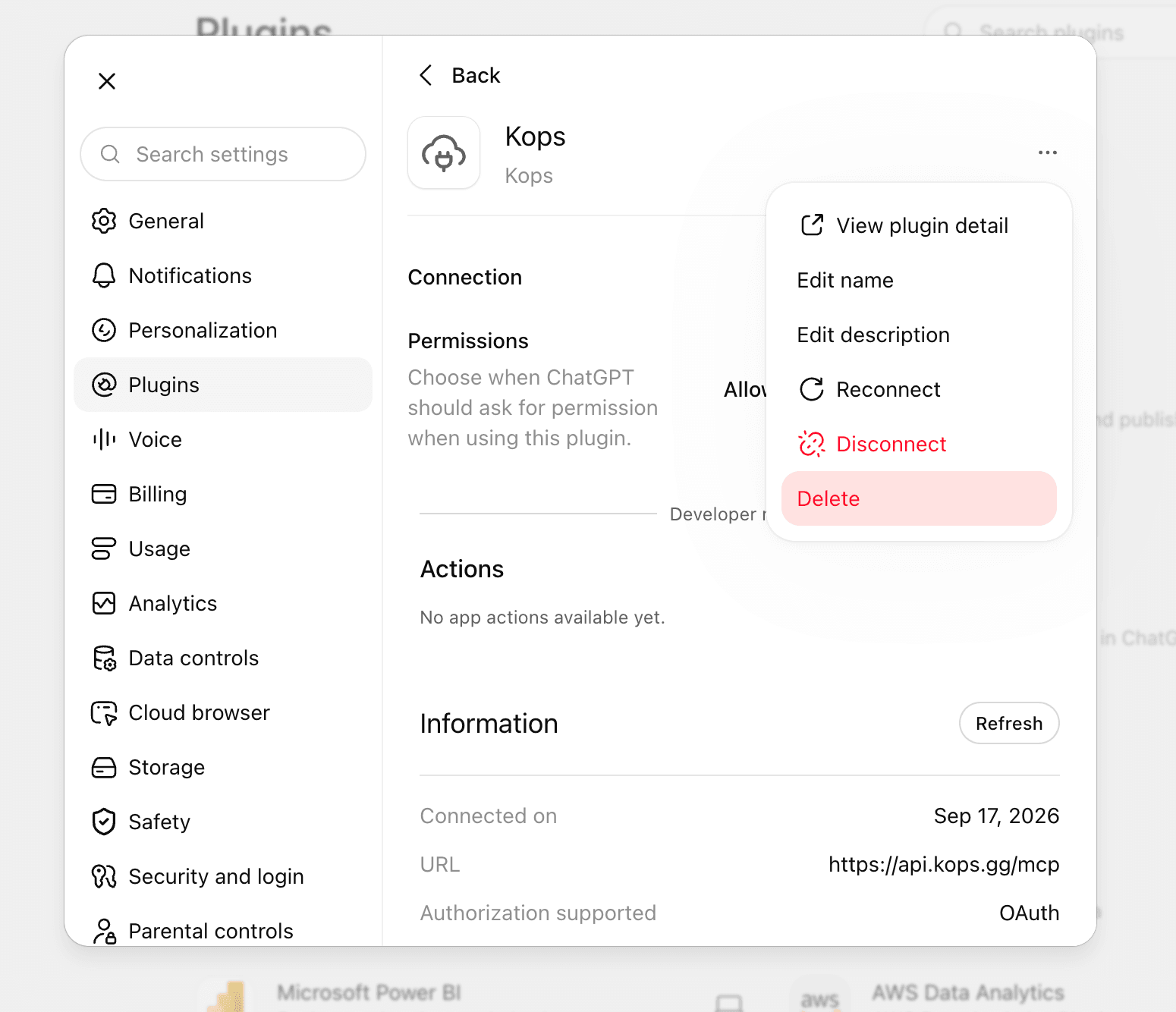
Reconnect in that same menu re-runs the sign-in with the identity ChatGPT already stored, so it does not help here — that stored identity is the thing Kops is refusing. Delete and add again is what replaces it.
Claude, Claude Code and Codex
- Claude: at claude.ai/settings/connectors, remove the Kops connector, then add it again with the address above.
- Claude Code:
claude mcp remove kops, then add it again and run/mcp→ kops → Authenticate. - Codex:
codex mcp remove kops, then add it again and runcodex mcp login kops.
Reconnecting ends the old connection: the approval you give afterwards is a new one, with its own permissions and, for a terminal assistant, its own activation code. There is nothing to clean up in Kops first.
When it does not work
It worked before and is now refused. Connections made before September 2026 were ended when Kops started recognizing assistants by their published identity. Follow reconnect an assistant.
A terminal assistant says every request is refused. It has not been activated. Give it the code Kops showed you; if the ten minutes have passed, connect again.
The assistant cannot see the connector at all. On ChatGPT this is usually the plan or the workspace administrator, not a mistake in the address — see the warning above. On Claude Free, check you are not already using your one connector on something else.
A browser sign-in box appears over api.kops.gg. That box is your browser's own, not a Kops page, and no Kops account will open it. It means the assistant asked with an identity Kops does not recognize — reconnect it as above. Kops answers that case with a page now; a browser that remembered the old prompt forgets it once the connector is added again.
Signing in works, then nothing happens. You approved in a browser where you were signed in to a different Kops account than you expected. Sign out, connect again, and read the workspace name on the approval screen.
It connects but every request is refused. The connection is bound to a workspace where your role does not have the permission being used. The approval screen showed the permission list; your role decides which of those actually resolve.
A tool you expected is missing. It was not part of what you approved, or it does not exist. The full published list is on what your assistant can do — check there first, then disconnect and reconnect to see the approval screen again.