Creating a filter
A filter is one saved search Kops watches in real time. Create one from scratch or from a Vinted URL, then decide whether it just notifies you or buys on its own.
Everything on this page happens on /filters.
What a filter is
One saved search Kops watches continuously. When a listing matches, three things can happen — and you choose which:
- it appears in your feed,
- it sends you a notification,
- it is bought or negotiated automatically.
The last one is Automatic acquisition, and it has a page of its own.
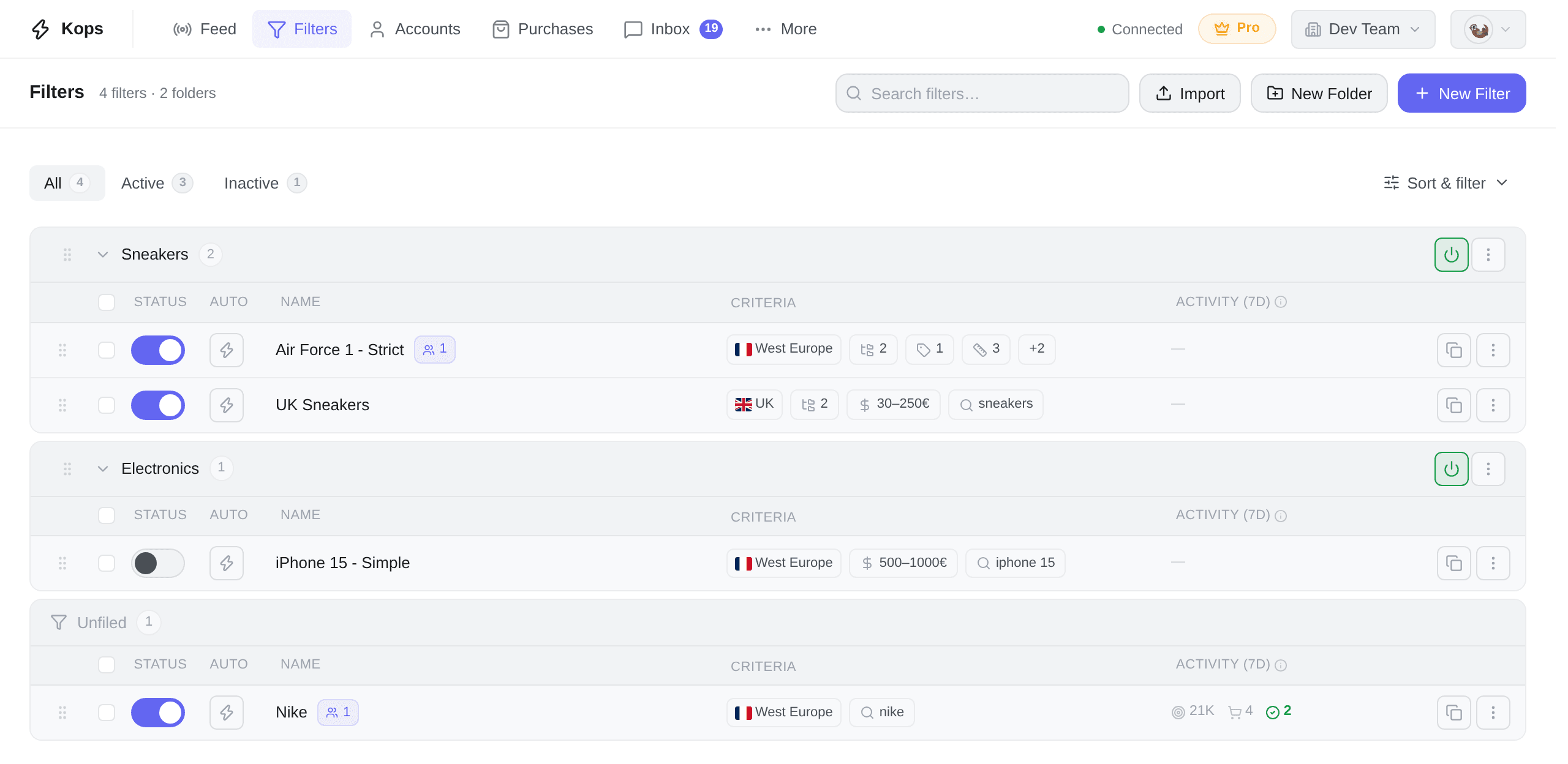
The filters page
The header carries the search box, + New Filter, New Folder and Import. Under the title, a count: how many filters you have, how many folders, and — on a plan with a filter quota — how many of your slots are used. Once every slot is taken, + New Filter becomes Upgrade.
Three tabs split the list, each with its own count:
| Tab | Shows |
|---|---|
| All | Everything |
| Active | Filters whose master switch is on |
| Inactive | Filters that are paused |
Sort and filter
One button, Sort & filter, holds everything else.
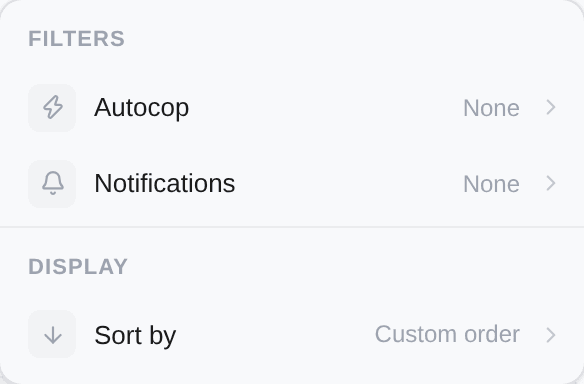
Two narrowing switches — Autocop and Notifications — each with All / Enabled / Disabled. And seven orders:
| Order | Reads |
|---|---|
| Custom order | The arrangement you dragged into place. The default |
| Name | A → Z / Z → A |
| Matches (7d) · Attempts (7d) · Purchases (7d) | Fewest / Most |
| Last updated · Date created | Oldest / Newest |
Choosing an order suspends drag-and-drop. What you see is then a computed order, and a drop would overwrite the one you arranged by hand. Pick Custom order to rearrange again.
The columns
| Column | What it is |
|---|---|
| Status | The master switch. Off = the filter does nothing at all |
| Auto | The lightning autocop switch, on plans that have autocop |
| Name | Plus its badges — Shared with you, subscriber count, Autocop, Auto-offer |
| Criteria | A one-line summary: zones, categories, brands, sellers, sizes, price, keywords |
| Activity (7d) | What the filter actually did |
Activity (7d) is three numbers: items matched, buy attempts, purchases — over a rolling seven days, across the whole workspace, refreshed about every five minutes. A filter that did nothing shows a dash rather than three zeros.
A ⚠ beside a filter's name means it is matching too fast. Past a certain rate per minute, matches beyond the limit are skipped rather than queued, so your feed stays usable. Hover the icon for the current rate and how many were skipped; the fix is to narrow the filter — a brand, a price ceiling, a keyword.
Filters are grouped by folder. See Folders and sharing.
Creating one
Click + New Filter, top right.
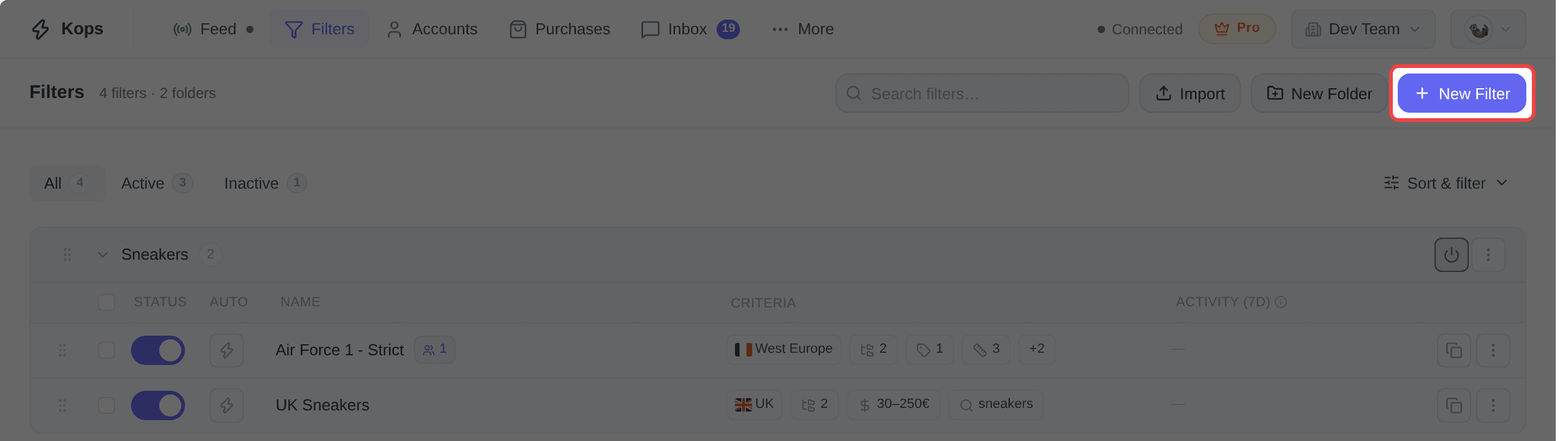
The editor opens on the criteria form, with a live Preview & Estimate rail beside it.
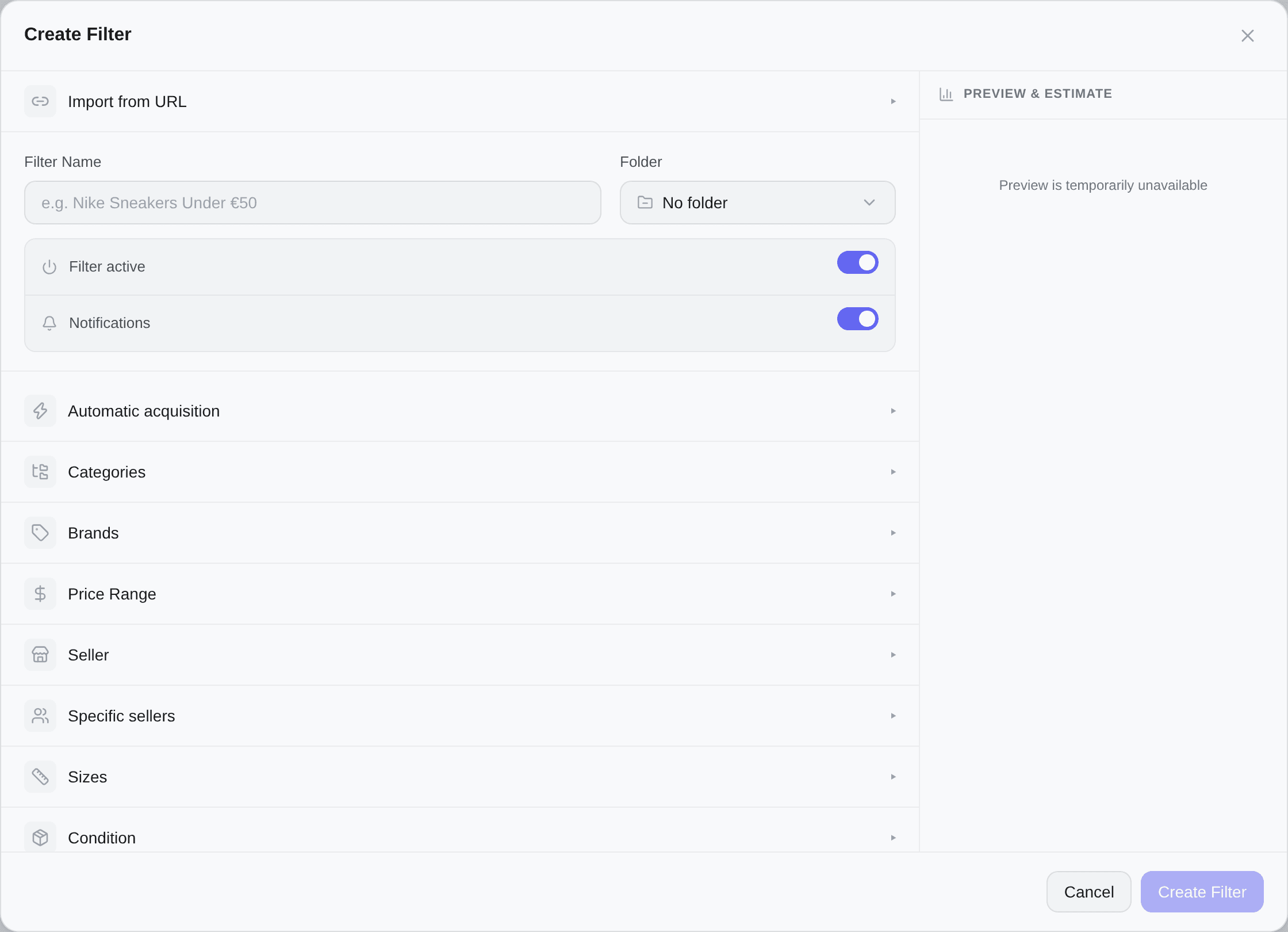
Only the name is required — Create Filter stays greyed out until you type one. Everything else has a sensible default, and an empty section accepts everything.
| Field | Notes |
|---|---|
| Filter Name | Required. Make it describe the search — Nike Air Max 90 under €80 beats filter 3 |
| Folder | Optional, beside the name. Pick an existing folder or type a new name to create one |
| Notes | The last section. Just for you and anyone the filter is shared with. Never used for matching |
Then set your criteria — see Filter criteria and Keywords — and click Create Filter.
Each section header tells you whether it holds anything while it is closed: a number for the sections you can count, a small dot for the ones you cannot (a price bound, a verification choice, a note).
Starting from a Vinted URL
Already have a saved search on Vinted? Paste its URL instead of rebuilding it by hand.
- Expand Import from URL at the top of the editor
- Paste the URL of your Vinted search
- Click Import
Filled in for you: categories, brands, sizes, condition, colours, materials, price range, video-game facets, the seller thresholds — and the search text, which becomes your include keywords.
A size the link gives as a number Kops does not know is left out, and the editor says how many. Check Sizes before saving: a filter with no size accepts every size.
Not filled in: geographic zones and automatic acquisition. Those are yours to set, and they are the two that decide what Kops buys.
If the URL is not a valid Vinted search, the editor says so rather than importing half of it.
The switches
Right under the name, two switches decide how the filter behaves.
| Switch | Effect |
|---|---|
| lightning Filter active | Master switch. Off = paused: no detection, no notification, no purchase |
| 🔔 Notifications | A push notification on every match |
Autocop is not a third switch here. It lives in the Automatic acquisition section further down, as Instant buy — because it is now one of two automations that share a price line rather than a plain on/off. The lightning button on the filter's row in the list toggles the same thing, without opening the editor.
They combine like this:
| Active | Instant buy | Notifications | Result |
|---|---|---|---|
| check | check | check | Detected, you are notified, and it buys |
| check | cross | check | Detected and notified — you buy by hand |
| check | check | cross | Silent autocop, no notification noise |
| check | cross | cross | Detected, feed only |
| cross | — | — | Nothing at all |
Tip. Many people keep autocop off and notifications on for high-value or low-volume searches they want to eyeball first.
Autocop also has a master switch. Per-filter autocop only fires when the global autocop button on the Feed page is on too — see Autocop.
Preview before you save
Preview & Estimate shows what the filter would have caught over the last 7 days: a match rate per hour and per day, a 7-day total, and a sample of recent matches. It recomputes as you edit, before anything is saved.
It is the cheapest way to find out that a filter is far too wide — or that it will never fire.
Estimates are approximate. Real match rates vary a little.
Duplicating and deleting
Duplicate — the copy icon on a filter row. The copy carries every criterion, keeps the same folder, and takes the original's name with " (copy)" appended.
It does not carry the original's behaviour: a copy always arrives disabled, with autocop off. That is deliberate — a duplicate is a starting point you are about to edit, and a filter that started buying the moment it was copied would buy the wrong thing.
Delete — from the row's ⋯ menu, or the button at the bottom of the editor, with a confirmation. On a shared filter the confirmation says how many people it will unsubscribe. If the filter was shared with you, the same action reads Unsubscribe and only removes your copy.
To act on many filters at once, see Bulk actions and import.