The Purchases page
Every order your accounts have placed, in one table — eight tabs along the journey a parcel takes, a View panel that groups, sorts and filters the whole set server-side, and an export that writes the file your spreadsheet actually expects.
/purchases in the sidebar.
An order lands here once Vinted has confirmed it, whether Kops bought it or you did — every account you have connected is polled, and the table is the merged result.
The tabs
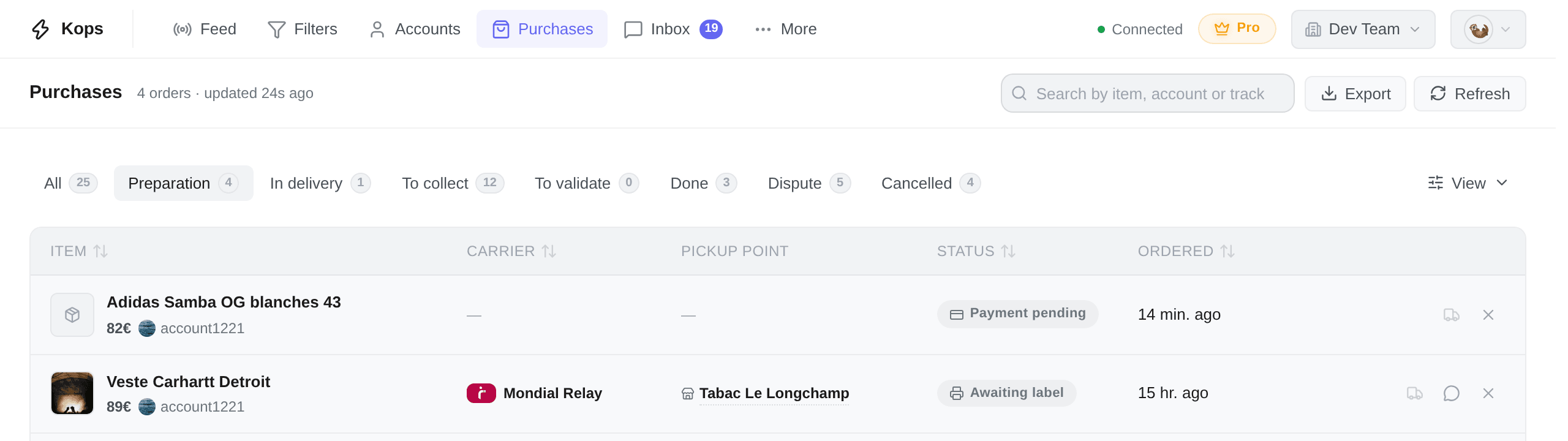
The strip across the top follows a parcel from left to right, in the order it meets each stage.
| Tab | What is in it |
|---|---|
| All | Every live order |
| Preparation | Bought, nothing has shipped |
| In delivery | The parcel is moving, or waiting at Vinted's authentication centre |
| To collect | Waiting for you at a pick-up point, with a hold clock running |
| To validate | Delivered, and you have a window to say whether it is what you paid for |
| Done | Settled — the seller has been paid |
| Dispute | Something went wrong and somebody has to act |
| Cancelled | No parcel is coming and no money is owed |
Two of them exist because they carry a deadline that costs you something if you ignore it. To collect — the parcel goes back to the seller. To validate — Vinted confirms receipt on your behalf and releases the money, which closes the window to refuse the item. Both are covered in Deadlines.
The page opens on Preparation, not on All — the orders whose next move is somebody else's, which is where a parcel spends its first hours.
All does not mean every row. It excludes the Cancelled tab, so it is every order that can still change. The Cancelled tab beside it is there for the times you want them.
Each tab carries its own count, and every filter you set narrows all of them at once — the numbers always describe the set you can actually reach.
The columns
| Column | What it shows |
|---|---|
| Item | Four facts, not one — see below |
| Shipment name | The name the parcel was shipped under — hidden by default |
| Ships from | The seller's country, which is where the parcel starts — hidden by default |
| Carrier | The brand carrying it, with its tracking number. Blank until one exists — a parcel on the seller's table has no carrier, and an em dash would be a placeholder for the absence of a fact |
| Pickup point | Where you collect it, its kind, and the chip that opens its code — see Pick-up points and codes |
| Status | What is happening right now, its countdown ring, and Vinted's delivery estimate — see Order statuses |
| Ordered | The day you bought it |
| Ended | The day it was cancelled or refunded — Cancelled tab only |
| Actions | The buttons for this row — see Actions on an order |
There is no Deadline column and no Price column. Both facts are on the row; neither has a cell of its own. The countdown lives inside Status, beside the badge that says what it is counting down to, and the price is on the Item cell's second line.
The Item cell is the row's identity, and it holds four things: the photo and title, what you paid, which of your accounts paid it, and — on a bundle — an N items badge that lists every item in the order. Clicking anywhere in the cell opens the listing on Vinted, not a full-screen photo; the account chip beside the price opens that account instead. A Syncing… chip appears while the order is known but its detail has not been read yet.
Shipment name and Ships from are hidden until you turn them on, for opposite reasons. The first repeats the same name on every row of a single-account workspace. The second is not repetitive at all — it simply is not what most people open this page to find out, and it would take width from the four columns that answer where is my parcel now.
Turn either on from View → Columns. Your choice is remembered per tab.
The View panel
View, top right. Everything in it is applied by the server to the whole set, not to the twenty rows on screen — sorting by price sorts your orders, not your page.
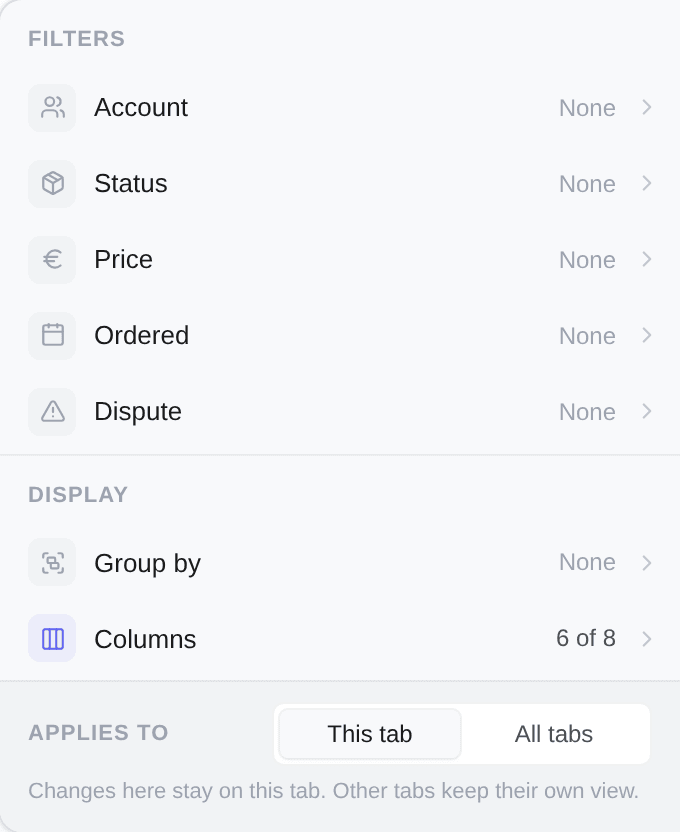
Clusters rows under named headings, each with its own count. Available axes: Account, Status, Stage, Carrier, Ships from, Pickup point, Ordered, and Ended on the Cancelled tab.
To collect is grouped by pick-up point out of the box, and it is the only tab that arrives grouped. The question that tab exists to answer is which of these are at the same place — one trip instead of one per row.
Item, Account, Status, Carrier, Price, Ordered and Deadline. Seven, and they are not the same seven you can group by.
Ended is not among them, on the Cancelled tab or anywhere else. It can be grouped and filtered — those need no ordering to exist — but there is no sort for the instant behind it, so offering the arrow would highlight a control over an unchanged list.
Names open alphabetically and Status opens along the parcel's journey rather than by spelling, so ascending reads payment → label → transit → delivered → settled and the sort answers how far along is each of these. Sorting by Deadline puts the soonest clock at the top, which is the fastest way to find what needs you today.
With no sort chosen the list rests on most recent purchase first, always — see The order the list is in.
| Filter | Kind |
|---|---|
| Account | Pick one or several — searchable |
| Status | Pick one or several, finer than the tab |
| Price | A range, in the order's own currency |
| Ordered | A date range |
| Ended | A date range — Cancelled tab only |
| Dispute | Any / Open / None |
Filters combine with and; ticking two values inside one filter means either. The tab counts follow along.
There is deliberately no filter by carrier: the options would have to be built from the rows currently loaded, so the list of carriers on offer would change as you paged through. Carrier stays available for grouping and sorting, which need no list up front.
Prices are compared in the order's own currency and never converted, so a price range across markets is comparing numbers, not amounts.
Search
The box in the header matches on three things at once: the item title, the buying account's username, and the tracking number. Paste a tracking number straight in and you land on the parcel — it is the handle you arrive with, because it is what the carrier's site, the carrier's SMS and Vinted's own notification all quote.
It does not search the seller. All three are partial matches, so half a tracking code finds the row.
Keeping it up to date
Orders sync on their own, continuously and per account. Two things tell you where that stands:
Syncing…on a row — the order is known but its detail has not been read yet. It fills in shortly.updated {time}in the header — how fresh the whole page is.
Refresh forces a pass over every account immediately. It is limited to once a minute per workspace, and the button shows the countdown while you wait. Rows also update live while the page is open, so in normal use you never need it.
An account that can no longer sync freezes the orders it placed. What that looks like, and what you can do about it, is in Order statuses.
Export
Export writes the orders your filters currently describe — the same set, never just the page. Up to 50 000 orders per file; past that the export stops and tells you, and you narrow the filters to get the rest.
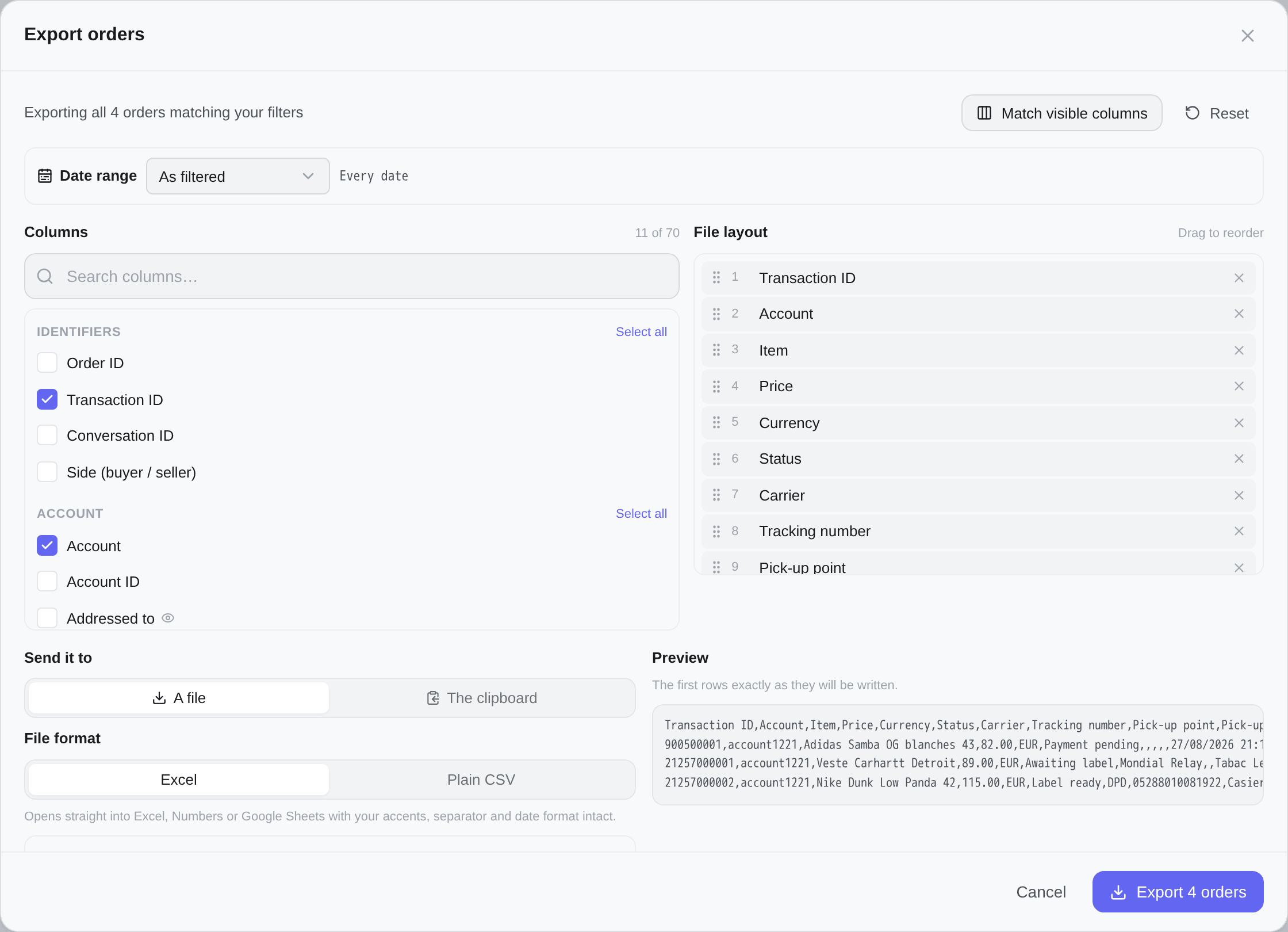
- Excel — opens straight into Excel, Numbers or Google Sheets with your accents, separator and date format intact.
- Plain CSV — comma-separated, dot decimals, ISO-8601 dates, no byte-order mark. For a script or an import tool.
- Custom — every option below, yours to set.
| Setting | Why it matters |
|---|---|
| Column separator | Excel reads this from your system settings, not from the file. Use a semicolon wherever the decimal separator is a comma |
| Decimal separator | Your spreadsheet decides this, not the language you read Kops in. Get it wrong and 14.09 is read as 1409 |
| Byte-order mark | Without it, Excel on Windows mangles every accent. Some simpler parsers dislike it |
| Neutralise formulas | Item titles and pick-up point names are written by sellers. A cell starting with = + - or @ is run as a formula by Excel and Sheets |
Kops warns you when your column separator and your decimal separator are the same character — most spreadsheets would split every amount into two columns.
Amounts as expenditure writes what you paid as a negative number so a ledger can add it up. Refunds keep their sign.
Fields carrying personal or tracking data are marked. They are written to the file normally and hidden on screen in streamer mode.