Add and configure a Vinted account

14 min read

Connect your Vinted accounts, manage their state, payment, shipping and groups — everything needed to make autocop operational.

Introduction

Autocop only triggers a purchase on an account that is active, verified, with a card and address. This page covers the full lifecycle of a Vinted account in Kops: add, configure, statuses, shipping, groups, troubleshooting.

Before connecting an account, read the safe Vinted account creation guide. Connecting a poorly prepared account can get it banned in under 24 hours.


1. The Accounts page

Available at /accounts from the side menu.

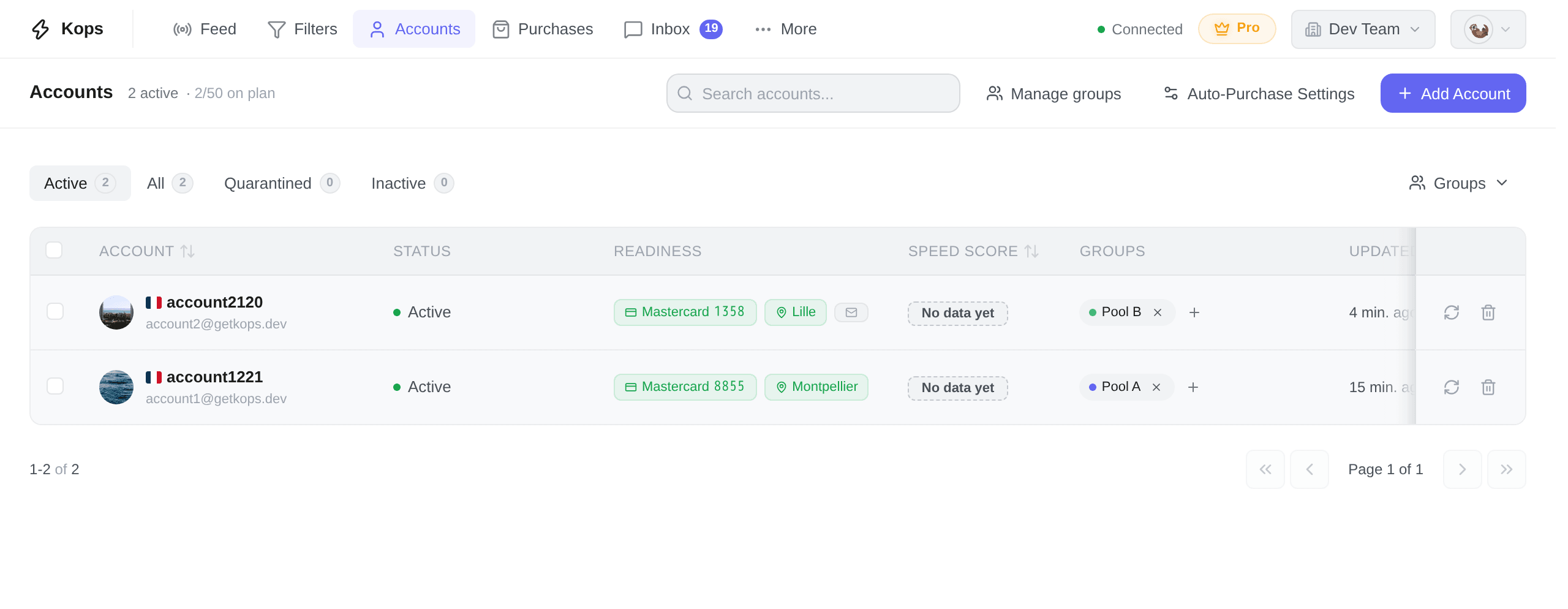
[Image of the full /accounts page: header, status filters, search, accounts table]

The page has 4 zones:

ZoneRole
Status filtersTabs Active / All / Quarantined / Inactive with live counters
Search + groupsFilter by username or by group (folder)
+ Add account buttonTop right — opens the add modal
Table / listOne row per account, status + readiness badges

If your plan limit is reached, the button is replaced by Upgrade plan and shows the remaining quota.


2. Adding an account

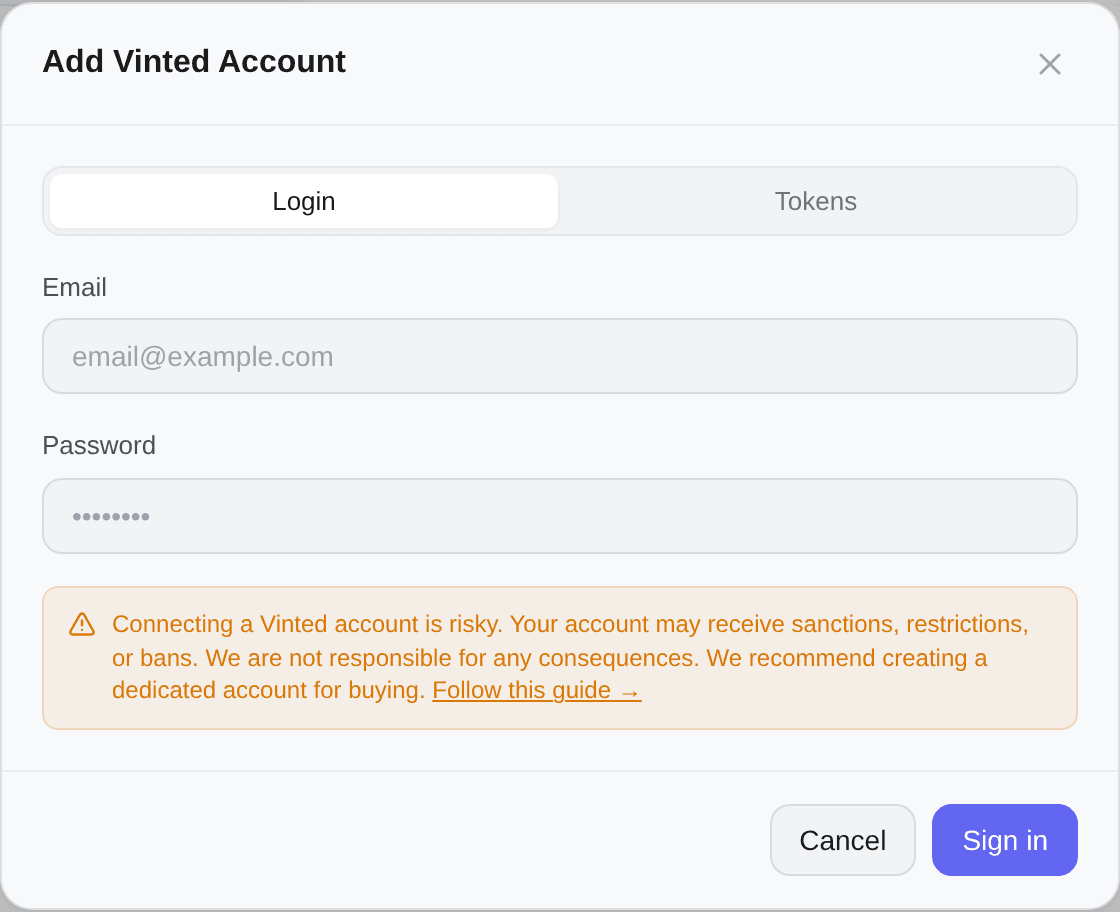
Click + Add account. A modal opens with two tabs: Login (default) and Tokens.

[Image of the add account modal showing the Login / Tokens tabs]

The simplest and most robust path: Kops handles Vinted authentication itself, including 2FA.

  1. Email — the Vinted account's email (not your Kops email)
  2. Password — the Vinted account password
  3. Click Log in

Kops validates the credentials against Vinted, retrieves the ID, username, country and avatar, then adds the account.

[Image of the Login form: email + password fields + Log in button]

Two-factor authentication (2FA)

If 2FA is enabled on the Vinted account, a verification step appears:

  • A 4-digit code is sent by email or SMS (Vinted picks based on the account's setup)
  • The screen displays the masked address or number where the code was sent
  • Type the code — verification fires automatically at the 4th digit

[Image of the 2FA step with the OTP input and "Code sent to •••@•••.com"]

Possible errors at login

HTTP codeMessageCauseAction
401 / 422Invalid email or passwordWrong credentialsRetry
429Too many attemptsVinted rate limitWait 5 to 10 minutes
500Vinted temporarily unavailableVinted-side incidentRetry later
— (2FA)Invalid codeWrong codeCheck your inbox or SMS
— (2FA)2FA session expiredTook too longRestart the login

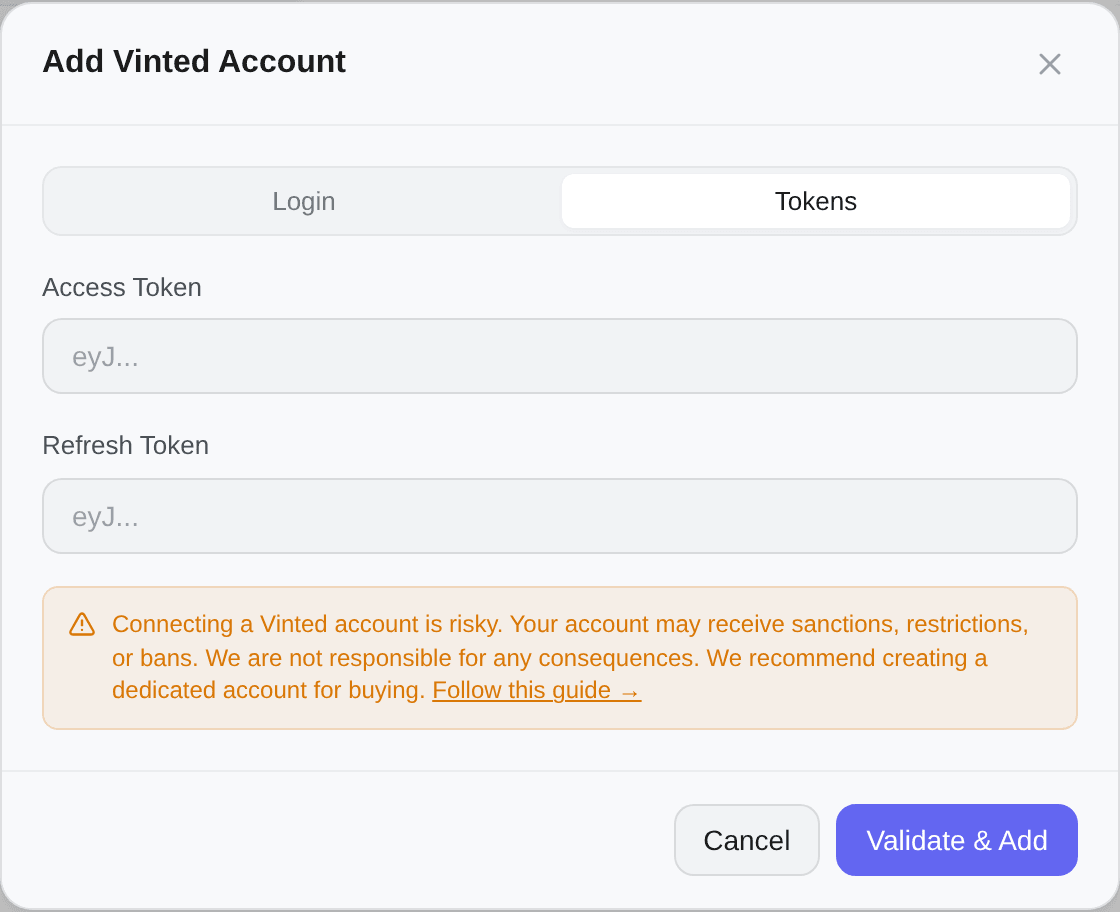
2.2 Tokens method

Use this method when login fails (captcha-protected account, geoblock…) or if you'd rather not share your password.

  1. Access Token — JWT string starting with eyJ…
  2. Refresh Token — optional but strongly recommended. Without it, Kops cannot regenerate the session and the account will go inactive as soon as the access token expires (about 10 minutes).
  3. Click Validate and add

[Image of the Tokens form with both Access Token / Refresh Token fields]

Get your Vinted tokens

Install the Chrome extension Vinted Token Finder:

  1. Log in on vinted.fr (or .com, .de, etc.)
  2. Click the extension icon
  3. Copy both tokens with one click

warning Tokens are bound to the session and the device. Copying them from one browser then logging back into Vinted from another invalidates the copied tokens. Grab them right before pasting into Kops.

[Image of the Vinted Token Finder extension open with both tokens visible]


3. Account statuses

The table shows the current status of each account.

StatusDotMeaningRecovery
Activeactive greenAuthenticated, ready to buy
Quarantinedquarantined orangeTemporarily blocked by a Vinted protection signalcheck Automatic
Inactiveinactive greyDead session, banned account or manually disabledcross Action required

3.1 Quarantine — details

Kops automatically quarantines an account when Vinted returns a protection signal (rate limit, captcha, behavior flagged as suspicious). The duration depends on the signal and ranges from 30 minutes to 24 hours.

The account becomes active again automatically at the end of the delay. You can also force release via the Release button in the account detail — use carefully: quarantine is exactly what protects you from a ban.

[Image of the quarantine banner in the detail modal showing "Releases in 47m" timer and Release button]

3.2 Inactive — precise reasons

The Inactive status always hides a specific reason, readable in the account detail:

ReasonMeaningAction
Session expiredThe refresh token is no longer validReconnect (login or new tokens)
Repeated authentication failureVinted rejects signed requestsReconnect
Account bannedVinted suspended the accountcross None — the account is permanently lost
Subscription expiredYour Kops plan is not activeReactivate the plan
Manually disabledYou paused it yourselfReconnect if needed
UnknownReason not reportedReconnect

[Image of the red Inactive banner with reason "Session expired" and Reconnect button]

The Reconnect button opens the same modal as adding, but in reactivate mode: Kops verifies that the new credentials match the same Vinted account as the one being reconnected (otherwise an HTTP 409 "Identity mismatch" error).


4. The account detail

Click a table row to open the detail modal.

[Image of the account detail modal showing all sections]

It is composed of 5 sections:

4.1 Identity

  • Vinted avatar, username prefixed with the country flag
  • Vinted ID (click to copy)
  • Email (click to copy) + Email verified check/⚪ indicator
  • Phone verified check/⚪ indicator
  • Country (FR, DE, IT…)
  • Last update time (resync)

4.2 Credit card

StateDisplayAction
No card"No card" tile+ Add
Card presentBrand + •••• 4242 + MM/YY + holder nameChange

[Image of the credit card tile with a saved card and the Change button]

Without a saved card, autocop will never use this account. Having a valid card isn't enough: for higher speed, prefer a card without 3D Secure authentication (see Buy faster).

4.3 Shipping address

StateDisplayAction
No address"No address" tile+ Add
Address presentName + line 1, city, postal codeChange

The address acts both as billing address and as the geographic reference point to compute the nearest pickup point.

4.4 Shipping preferences

Three modes available, switchable at any time via the Manage button.

[Image of the Shipping preferences modal opened on Pickup point mode]

Contact phone (optional, shared across all three modes) — used at purchase time when Vinted has no phone on file for the account. If left empty, a fallback number is used.

The package is delivered to a Vinted pickup point (Mondial Relay, Relais Colis, InPost…). Two sub-modes coexist: Nearest (default) and Priority list.

Nearest (default)

Zero configuration. At purchase time, Kops compares the pickup points Vinted offers for that specific item (the list varies per seller, carrier and item) with your address, and automatically picks the closest one.

This is the mode that maximizes success rate: if a single relay is offered, it gets picked.

[Image of the "Nearest active" sub-mode with the centered info message]

Priority list

You rank your favorite relays. On every purchase, Kops walks your list top-down and picks the first relay Vinted offers for that item.

This is the mode that maximizes control — at the cost of a slightly lower success rate when Vinted doesn't offer any of your favorite relays.

How the list fills up ("discovery")

The list isn't built by hand: you can't add an arbitrary relay to it. Instead:

  1. You start Priority list mode with an empty list ("No points discovered. Points will appear after the first purchase.")
  2. As Kops buys in Nearest mode (or even in Priority list when a default relay was used), every relay actually used is memorized and appears in your point library
  3. Step by step you build your personal catalog of relays — those that are actually available in your area, already vetted by successful purchases
  4. Once a few points are discovered, you can drag and drop them to set your priority order

[Image of the "Priority list" sub-mode with several ranked points and the drag handle]

Excluding a carrier on a specific relay

Each discovered relay can be served by several carriers (e.g. Mondial Relay and Relais Colis on the same physical point). If one of them is problematic on a specific relay (hours, unfriendly owner, reliability), you can exclude it on that relay only without affecting the others.

  • Click the carrier pill on the relay card → tooltip "Exclude this carrier for this point"
  • The excluded carrier is then ignored only on that relay; it stays usable on the other relays of your list
  • Click again to re-enable it

Exclusion is finer than removing a relay: it lets you say "I like this point, but not with this carrier."

What autocop sees at purchase time

For a given item, autocop applies this selection logic:

  1. Vinted returns the list of relays actually offered for the item (varies item by item)
  2. Kops walks your priority list top-down
  3. The first relay that is both (a) in the Vinted list and (b) not excluded for the carrier in use → that's the one selected
  4. If none of your relays match, the purchase fails on shipping (the trade-off of Priority list mode)

Reset discovery

Button at the bottom-left of the modal. Wipes the entire discovered relay list.

  • Your mode (priority or nearest) is kept
  • Relays will be rediscovered automatically on the next purchases
  • Useful after moving, or if many old relays are no longer relevant

[Image of the reset discovery confirmation dialog]

Preferences shared between accounts

If multiple accounts use the same address, they automatically share shipping preferences (mode, priority list, phone). A blue banner warns "Shared with X other account(s)" — any change applies to all of them.

[Image of the blue "Shared with 3 other account(s)" banner at the top of the modal]

4.5 Team members

List of users in your organization who have access to this account. Shows: email/username, role (owner, admin, member, viewer), assignment date. Empty = nobody else has access.

[Image of the Team members section with two assignments]


5. Account actions

The detail modal footer exposes the main actions.

ButtonEffect
RefreshRe-syncs the account with Vinted (avatar, verifications, card, address)
QuarantineManually pauses the account (use if you suspect risk)
ReleaseVisible only when the account is quarantined
ReconnectVisible when the account is Inactive (except banned account)
Delete deleteRemoves the account from Kops (does not touch the Vinted account)

Delete ≠ ban. Deletion only erases the data Kops stores (tokens, card, address, stats). The Vinted account itself stays intact.

5.1 Bulk actions

Select multiple accounts via the table checkboxes to enable the bulk action menu:

  • Refresh — resync all selected accounts
  • Quarantine — group pause
  • Release — group release
  • Delete — group deletion (with confirmation)

[Image of the bulk actions menu activated after selecting 3 accounts]


6. Account groups (folders)

Groups let you organize accounts by role, by team member, or by strategy. A group = a colored label.

6.1 Create a group

From the Groups menu on the Accounts page:

  1. Click + New group
  2. Type a name (e.g. Sneakers, Vintage, Sarah's account)
  3. Pick a color from the palette
  4. Confirm

[Image of the manage groups modal with the color palette]

6.2 Assign an account

From the account detail or via the table row's context menu:

  1. Click Groups
  2. Tick the wanted groups (an account can belong to multiple groups)
  3. Confirm

6.3 Filter by group

The colored pills above the table filter the list. Click to enable a group; click again to disable. Combinable with search and status filters.

[Image of the group pills active above the table with one filter selected]


7. Readiness badges

On each table row, compact badges flag the account's readiness:

BadgeMeaning
✉️ greenEmail verified
📞 greenPhone verified
💳 greenCard saved
📍 greenAddress saved
Greyed badge with +Item missing — click = direct add

An account is fully ready only when email, card and address are all set.

[Image of a row with all green badges versus a row with greyed badges]


8. Plan limits

The number of connectable accounts depends on your organization's plan. When the limit is reached, the + Add account button becomes Upgrade plan and shows the remaining quota.


9. Troubleshooting

Most likely cause: you provided an access token without a refresh token. The access token expires in about 10 minutes. Always provide the refresh token so Kops can regenerate the session automatically.

You're trying to reconnect account A with credentials or tokens from account B. Kops checks the returned Vinted ID and refuses, to prevent overwriting your data.

→ Reconnect with the right account's credentials, or delete the old one and create a new one.

Vinted has temporarily blocked login attempts for this IP or account. Wait 5 to 10 minutes before retrying. If the problem persists, switch to the Tokens method.

Common causes:

  • Datacenter IP or VPN detected by Vinted
  • Inconsistent browser fingerprint
  • Multiple accounts linked by card, address or device

→ Read the Safe Vinted account creation guide to clean up the environment.

Check in this order:

  1. The account is Active (not quarantined or inactive)
  2. A card is saved (green 💳 badge)
  3. An address is saved (green 📍 badge)
  4. The email is verified on Vinted
  5. The filter matching the item is linked to a group containing this account (if you use groups)

The 2FA code wasn't entered fast enough (Vinted allows about 5 minutes). Restart the login: a new code will be sent.

Possible causes:

  • List too short: with only one or two relays, the odds Vinted offers at least one of them on every item are low
  • Too many carrier exclusions: each exclusion shrinks coverage
  • Items from another country: a French relay will never come up for a German seller

→ Either grow the list (let Kops discover more relays in Nearest mode for a few days), or switch to Nearest for international filters.


Going further

Share