Buying accounts
The catalog, one row per country, and the purchase dialog — quantity, volume prices, what the balance becomes, the box you tick — then every reason it will not buy, down to an order whose answer never came back.
Catalog, the Shop's first tab — /shop. Buying takes the Admin role and the Plus or Pro plan; see The Shop.
The catalog
Titled Shop, with Vinted accounts, by country beside the title (hidden on a phone). On the right of the header, the Balance chip: what the workspace's balance holds, with Frozen beside it when the balance is frozen. It opens the Balance tab. In Streamer Mode the amount is masked.
Under the four lines that say what an order gets you — see What an order gets you — there is one row per country, sorted by the country's name:
| On a row | What it says |
|---|---|
| The country and the product's name | Which Vinted market the accounts are on, and what the product is called |
| {price} each | The price of one account, in euros, all taxes included |
| From {quantity}: {price} each | A volume price, with −{percent}, the saving it makes. A product may have several, or none |
| {count} in stock | How many accounts the stock holds now, the same count for every workspace |
| Out of stock | None left. Restocks show here on their own. — and the row has no Buy until they do |
| Buy | Opens the purchase dialog |
The catalog reads itself again every fifteen seconds while you are on it, so a restock shows up without a reload. It does not while a purchase dialog is open: the prices and the stock you are ordering from do not move under you.
Nothing on sale right now means just that — Accounts show here as soon as a country is restocked. This page updates on its own.
On Starter, each row's Buy is replaced by Upgrade Plan: the catalog, its prices and its stock are there to read, and the plan that buys is one click away.
The purchase dialog
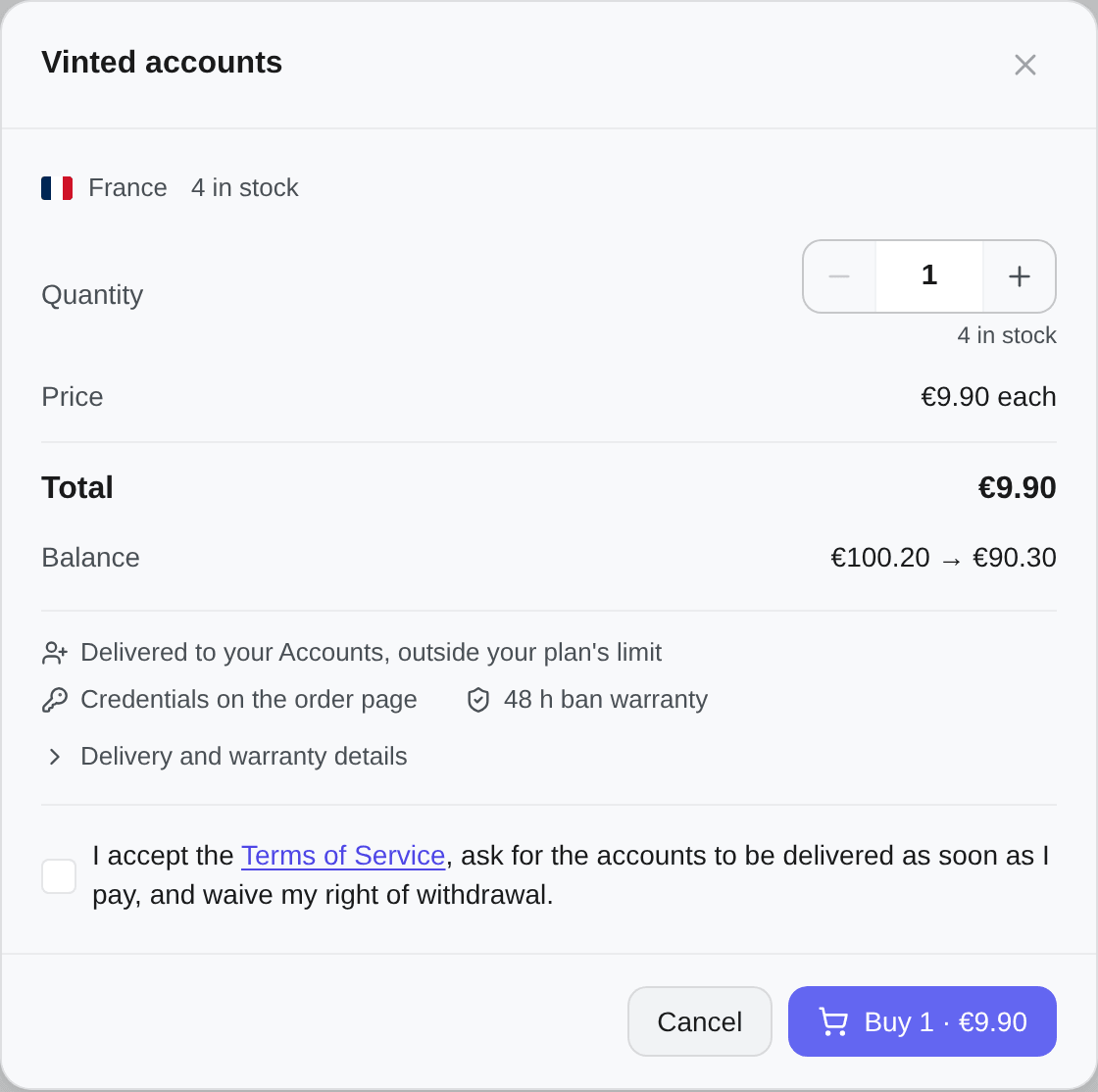
Titled with the product's name, then its country and its stock.
| Row | What it says |
|---|---|
| Quantity | How many accounts this order buys. Under it, what limits it: {count} in stock; Max {count} per order, since one order buys 1,000 at most; or Only {count} can be sold right now, after a refusal for stock |
| Price | {price} each, with −{percent} once the quantity reaches a volume price |
| Total | What the order costs |
| Balance | {balance} → {after}: what the balance holds now, and what it will hold once the order is placed |
When a volume price is within reach, Buy {quantity} for {price} each instead sets the quantity that earns it. It is a suggestion, not a default: nothing changes until you press it.
The button says what it buys and what it charges — Buy 5 · €67.50. It follows the quantity as you type it, so what it reads when you press it is exactly what is ordered. You pay the price shown: if it changed in the meantime, the order is refused rather than charged at another price.
What you get, said before you pay
Under the totals, the dialog repeats what the order delivers, and Delivery and warranty details opens the long version: where the credentials are and until when, the warranty's rule, the condition it holds you to — keep it in Kops and signed in until the warranty ends. Changing its password signs Kops out. — and, last, the card and the address each account needs before it can buy. That condition is explained in Keep it in Kops and signed in.
The box you tick
I accept the Terms of Service, ask for the accounts to be delivered as soon as I pay, and waive my right of withdrawal.
Its Terms of Service opens the Terms in a new tab. The accounts are delivered the moment the order is paid, so ticking the box is how you ask for that and waive the 14-day right of withdrawal on this order.
It starts unticked every time the dialog opens: you agree per order, never once for all. Press Buy {count} · {total} without it and the dialog says Tick the box to place the order., right under the box.
When the dialog will not buy
The dialog shows one banner at a time, under the product line, and swaps its button for the way out. Every one of these refusals charged nothing.
| What you see | Why | What the dialog offers |
|---|---|---|
| Missing {amount}, in the Balance row | The balance holds less than the total | Top up: the dialog closes and the Balance tab opens. Pay, come back, and choose the quantity again — nothing was held for you meanwhile |
| Balance Too Low | The same, found by the server | Top up |
| Balance frozen | Kops froze the balance: it can be neither topped up nor spent | Contact support, where the support chat is available, and Close |
| Not Enough In Stock | Fewer accounts can be sold to your workspace than you asked for | The quantity drops to what can be sold, with Only {count} can be sold right now, and the button buys that many. With none left, Close |
| Price Changed | The price changed since the page showed it | The button carries the new total. Read it, and press again |
| Terms Changed | The Terms of Service changed since the page was loaded | Refresh the page, read the Terms in force, and order again |
| This product is no longer on sale., or Not On Sale | It was withdrawn from sale | Close |
| Any other refusal | Its own words | The button stays as it was |
The stock can hold fewer accounts for your workspace than the catalog showed — one sold or withdrawn since, for instance. That is the Not Enough In Stock case, and the dialog sets the quantity to what is left rather than leaving you to guess.
The banner and button words are listed with every other one on Error messages.
An order Kops could not confirm
While an order is being placed, the button reads Placing your order… and the dialog cannot be closed.
If no clear answer comes back — the connection dropped, the server stumbled — the dialog says so:
We couldn't confirm your order — We didn't get a clear answer about your order. Try again here: you won't be charged twice. If it went through, it's in your orders.
The dialog then holds the order exactly as it was sent, and its only ways out are its two buttons:
- Try again sends that same order. If the first one went through, the answer is that order: it is placed and paid once at most.
- See my orders opens the orders, where an order that went through is already listed.
The promise belongs to that dialog. A dialog you open afresh composes a new order. If you left before the answer came, look in Orders before buying again.
Once it is placed
The dialog closes and the order's page opens: what was bought, the total, the order number, the warranty's end, and each account, its credentials behind Show credentials. See Shop orders.
The accounts are already in your Accounts, marked Shop, and the balance has moved by the total. The Admin who placed the order gets an email — Your Shop order: {count} × {product} — with the usernames of its accounts, the first ten and how many more, and a link to the order, unless their address refuses Kops emails. The email never contains credentials.
Before a bought account can buy, it needs your card and your address: Add a card and an address to each account before it can buy. The order's page says so too, with See the accounts beside it.