Reading the feed
Every match from every active filter, live. The counters along the top, what a card carries, the five columns you can split it into, and everything a card lets you do without leaving the page.
The feed is /feed, and it is the dashboard's home page. Every listing that matches an active filter lands here the moment it appears.
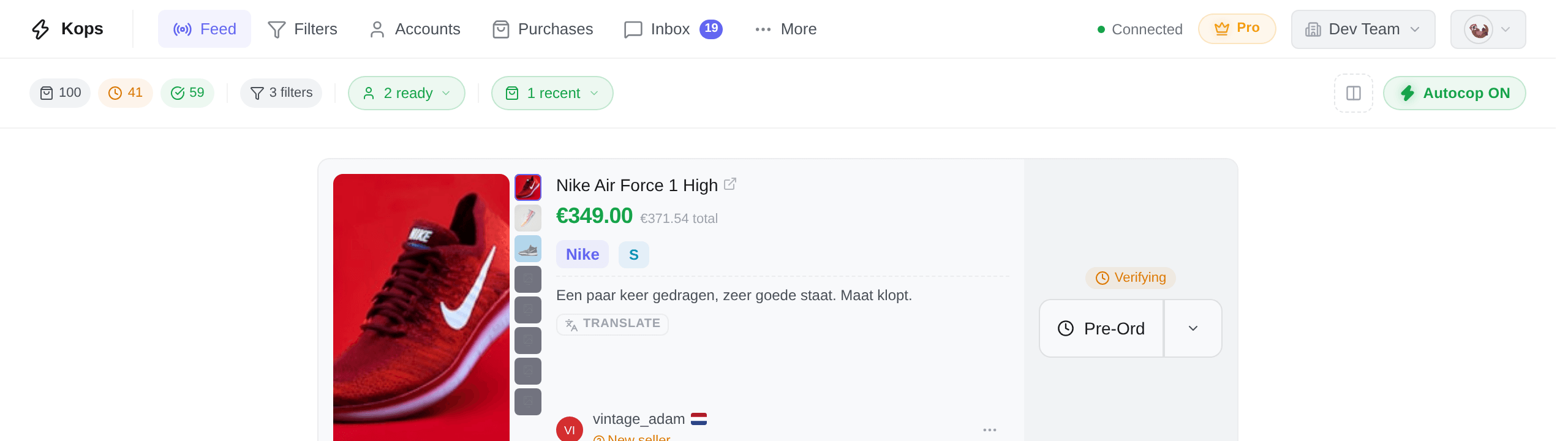
The counters along the top
Small pills, each an icon and a number. Hover one for its name.
| Pill | What it counts |
|---|---|
| Total products in feed | Everything currently in the feed |
| Products being verified by Vinted | Not buyable yet |
| Available to purchase | Verified and ready |
| Sold items | Items that went while you were watching |
| Removed by Vinted | Listings Vinted took down |
Only the total is always there. The other four appear only while they are not zero, so a quiet feed shows one pill and a busy one shows five — a missing pill is a count of nothing, not a fault.
They count what is in the feed right now, and the feed holds the 100 most recent matches. They are not your totals for the day; the day's history is on The Attempts page and The Purchases page.
Beside them, three things:
- how many active filters are feeding it;
- the Account Status menu, whose pill reads {count} ready;
- a Recent purchases menu, which appears only when there is something in it.
Account Status is worth opening before a drop. It lists every buying account with its state — Ready, quarantined with the time left, No card, Inactive — and lets you quarantine one or release one on the spot. If it says No accounts available, nothing is going to buy anything, whatever your filters do.
Recent purchases is the one that finds you. It leads with Needs attention — a purchase waiting on a 3-D Secure verification, or one where Vinted wants a manual step — with a button straight to it. Those are the two states that expire if nobody looks, and the feed is where you already are.
What a card carries
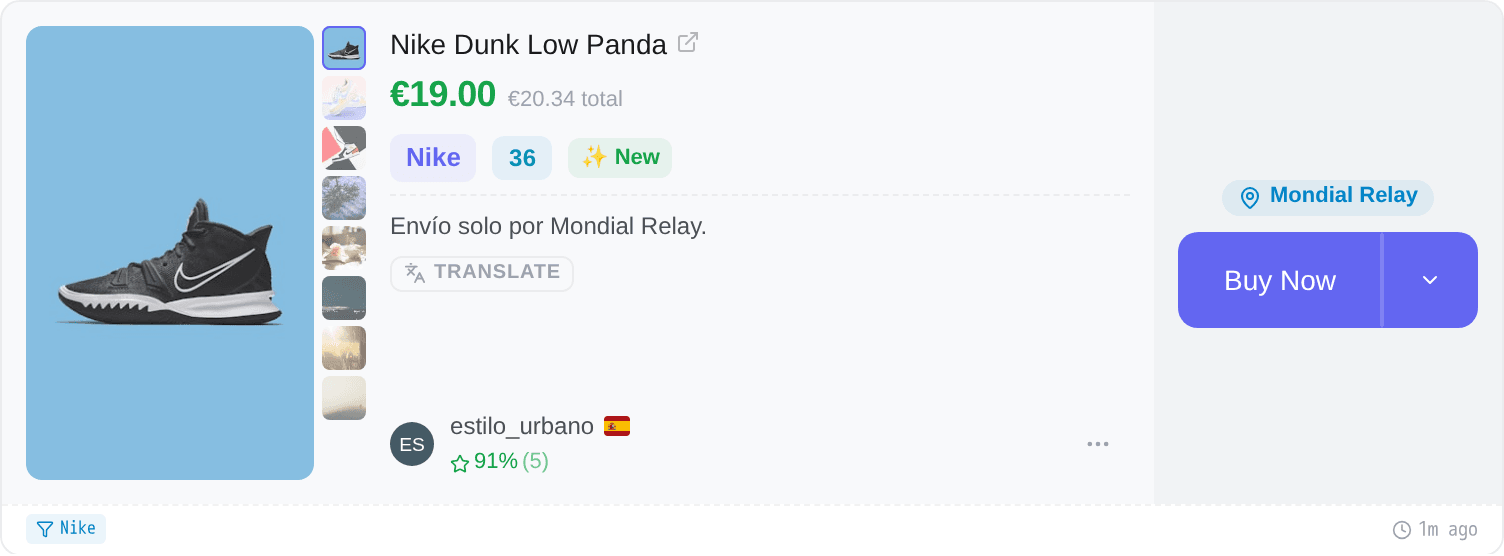
Each match is a card with the item's photo, title, brand, size and condition, its price (and the total with buyer protection beside it, when there is one), the filter that caught it, and how long ago it matched.
The size reads in your language, whichever language Vinted wrote the listing in. When Vinted wrote it otherwise, hover the size to see Vinted's label. A few labels name one size in French and another in English (bra bands, some belt lengths); those show as Vinted wrote them.
On a phone listing the card also carries the specifics that decide the deal: model, storage, SIM lock and battery health.
Cards carry things about the seller too: their country, a PRO tag on professional sellers, and a reputation pill — a percentage with the number of reviews behind it, or New seller when there are none. Hover it for the reading: Trusted seller — many positive reviews, Decent reputation, Few evaluations or mixed reviews, Low reputation — proceed with caution.
When more than one of your filters caught the same item, the extra ones are behind a +N next to the filter chip.
Click a card to open the full item — every photo, the full description, and the seller's profile.
Item descriptions arrive in the seller's language. Both the card and the detail view carry Translate / Original, so you can flip between the two without leaving Kops.
The badges
A card can carry up to four small badges above its button, and they are independent of one another:
| Badge | What it means |
|---|---|
| The listing status | Only when the listing is not plainly on sale — see Item statuses |
| Republication | This listing looks like one a Kops buyer already acted on at this seller — see Autocop |
| A carrier hint | The seller's description says they ship only with, or refuse to ship with, a given carrier |
| Do not buy | The seller's description says not to buy the item |
The last two are read out of what the seller wrote. They are a warning, not a rule: nothing is blocked on your behalf.
Splitting it into columns
The feed is one list by default. It can be up to five columns side by side, and each column has its own source:
- All — everything, minus whatever the other columns already show, so nothing appears twice.
- One or more folders — only the filters in those folders.
- Purchases — items your workspace has actually won, live.
That last column is the one people miss. On a team, it is the fastest way to see what everyone is landing without opening the Purchases page.
How many columns fit depends on your screen: below about 800 px there is room for one, and a column is added for each further 400 px. Shrink the window and the extra columns close from the right. On mobile the columns become tabs.
Folders and Purchases only exist once there are two columns. A single column is always the plain "All" feed — which is why the folder selector is not there to find.
What you can do from a card
The button at the bottom right is a split button: the action on the left, everything else under the chevron.
| Action | Where | What it does |
|---|---|---|
| Buy Now | The button | Runs the checkout on Vinted with one of your accounts |
| Pre-Order | Replaces it, on an item still in verification | See Pre-orders |
| Buy with specific account | Chevron | Picks the account yourself instead of letting the rotation choose |
| Start conversation | Chevron | Opens a thread from one of your accounts |
| Make an offer | Chevron | Sends an offer to the seller — see Automatic negotiation |
| Create a bundle | Chevron | Starts a bundle anchored on this item |
| Estimate resale | Chevron | Market analysis for that item — see Sales and resale tools |
The seller's own ⋯ menu, in the seller row, is separate and holds three more: Visit profile, Create a filter for this seller, and Block seller — see Privacy and blocked sellers.
Buy Now hands the item to the account rotation. To choose yourself, hold the button rather than tapping it — Buy with specific account in the menu is the same thing, spelled out.
Start conversation and Make an offer follow the account setting in Settings → Purchase Preferences instead: Ask each time, Auto-pick (a random ready account, falling back to the picker), or Pin one.
Once an attempt has run on an item, the button becomes Retry Purchase, and the menu gains Retry with specific account and Cancel the order — for the order your purchase placed, which the confirmation asks Vinted about before anything is sent.
The autocop button
Top right, and it is the master switch for the whole workspace. Green and reading Autocop ON means armed. See Autocop — nothing on this page fires automatically while that button is off.
When something is holding items back
Two banners can appear above the feed, and they say opposite things.
Filters throttled — a filter of yours is matching more items per minute than the feed can stay usable at, so matches beyond the limit are skipped and never reach you. See details names the filters, gives each one's rate against its limit, and counts what was dropped. The fix is on your side: narrow the filter — a brand, a price ceiling, tighter keywords — until its rate falls back under the limit. A milder version, approaching their match limit, warns before anything is skipped.
New items are arriving more slowly than usual (or have stopped arriving right now) is the opposite: your filters are fine and the flow of new listings is not. Nothing is dropped, and the feed catches up on its own.
Sounds
Settings → Notifications → Sounds can play a short chime on every new match. It stays silent only while you are actively looking at the Feed — the match arrives on screen anyway, so a sound would be redundant.
Three sounds to choose from, previewed as you pick. Push notifications, for when you are not looking at all, are covered in Notifications.
When the feed is empty
Two different empty states, and they mean opposite things:
No active filters — you have nothing switched on. Nothing is being watched. Go to the Filters page.
Waiting for products — filters are running and nothing has matched yet. That is normal for a narrow filter; give it a few hours before deciding it is broken. If it stays empty overnight, the filter is too narrow rather than the feed being stuck.